
If you teach, train, or lead online workshops, you’ve probably already experienced this:
- You write on the board… and from a distance you can’t see anything.
- The camera cuts off half of the diagram.
- The image is crooked.
- The students tell you: “We can’t see very well…”
It’s frustrating. Because in person, the whiteboard is your best teaching tool. But in video conferencing, it often becomes unusable.
This is where the Insta360 Link 2 Pro completely changes the game thanks to its integrated Smart Whiteboard .
In this article, I explain:
- How does Smart Whiteboard Mode work?
- The maximum recommended distance (up to 5 meters)
- How to activate the mode with a simple “V” gesture
- Practical case studies in the classroom and in training
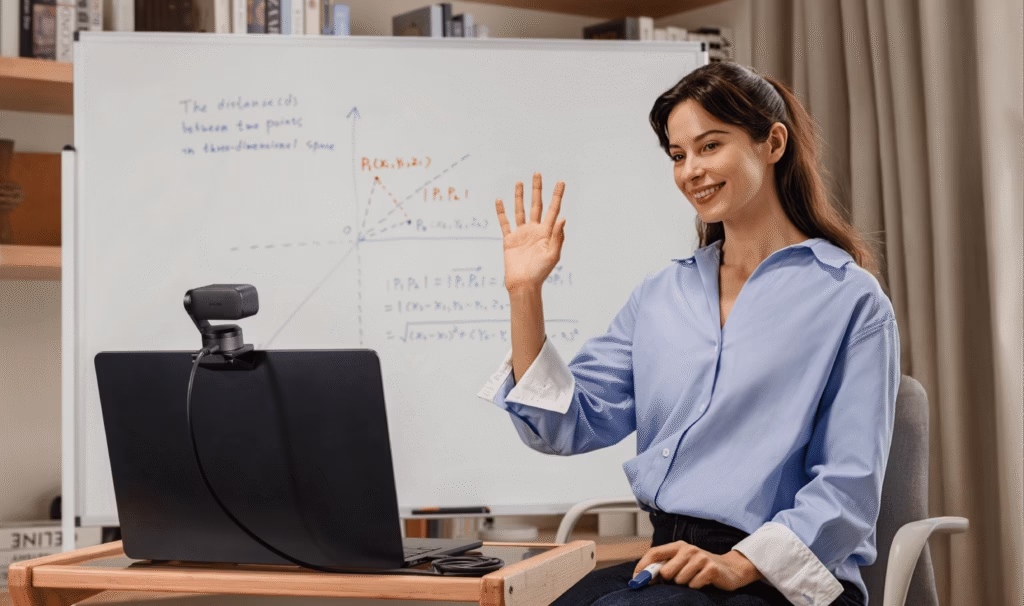
What is the Smart Whiteboard (and why does it change everything)?
The Smart Whiteboard of the Insta360 Link 2 Pro is not just a zoom on a whiteboard.
It’s an intelligent system that:
- Automatically detects the whiteboard
- Corrects the perspective if the camera is slightly tilted
- Crop the image to keep only the useful area
- Optimizes readability
Result: even if your webcam is not perfectly centered, the image appears straight, sharp and well framed for your students or trainees.
And for a math teacher, language teacher, physics teacher, or marketing trainer, that’s a huge gain.
How does Whiteboard mode work on the Insta360 Link 2 Pro?
The Insta360 Link 2 Pro combines several technical elements:
- A very bright 1/1.3” sensor
- A motorized gimbal
- An embedded AI
- Real-time image processing
Step 1: Table detection
The camera identifies the outline of the whiteboard.
For optimal performance, the edges must be visible and well contrasted.
Step 2: Perspective correction
If the camera is placed slightly to one side (which often happens in class), the Insta360 Link 2 Pro automatically straightens the image.
The painting no longer appears tilted or distorted.
Step 3: Intelligent reframing
AI zooms in on the usable surface to:
- Remove unnecessary walls
- Eliminate distractions
- Center the educational content
It’s smooth, automatic, and avoids manual adjustments mid-lesson.
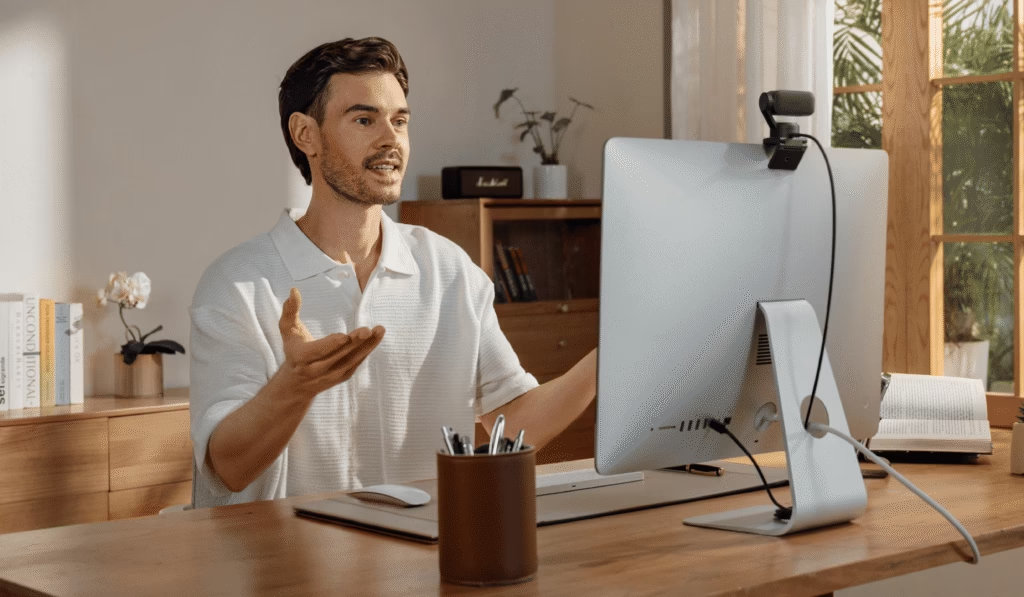
Maximum distance and ideal placement (up to 5 meters)
This is a key point.
The Insta360 Link 2 Pro can recognize a painting up to 5 meters away when it is facing the camera.
Some simple recommendations:
- Ideal distance: between 3 and 5 meters
- Angle: avoid an inclination greater than 30°
- Height: Position the camera at eye level
- Lighting: avoid direct reflections on the painting
If the painting is too far away or poorly lit, detection may be less accurate.
Activate the Whiteboard with a “V” gesture
What I really like about the Insta360 Link 2 Pro is its simplicity.
You can activate Whiteboard mode with a simple gesture:
- Make sure your face is visible in the frame
- Make a “V” gesture (like the victory sign).
- The camera detects the gesture
- Whiteboard mode activates automatically
No need to go and click on a software program in the middle of class.
Tips to make it work every time
- The painting must be fully visible
- Your gesture should not hide your face
- Avoid backlighting
Case study 1: Hybrid classroom
Let’s imagine a hybrid course with:
- Students attending in person
- Others via videoconference
Simple setup:
- The Insta360 Link 2 Pro mounted above a screen or on a tripod
- Positioned facing the painting
- External microphone if the room is large
Typical procedure:
- On-camera introduction
- “V” gesture
- Transition to the table
- Clear and readable explanation
- Back to the camera for questions
Remote students finally see a usable board, as if they were in the room.
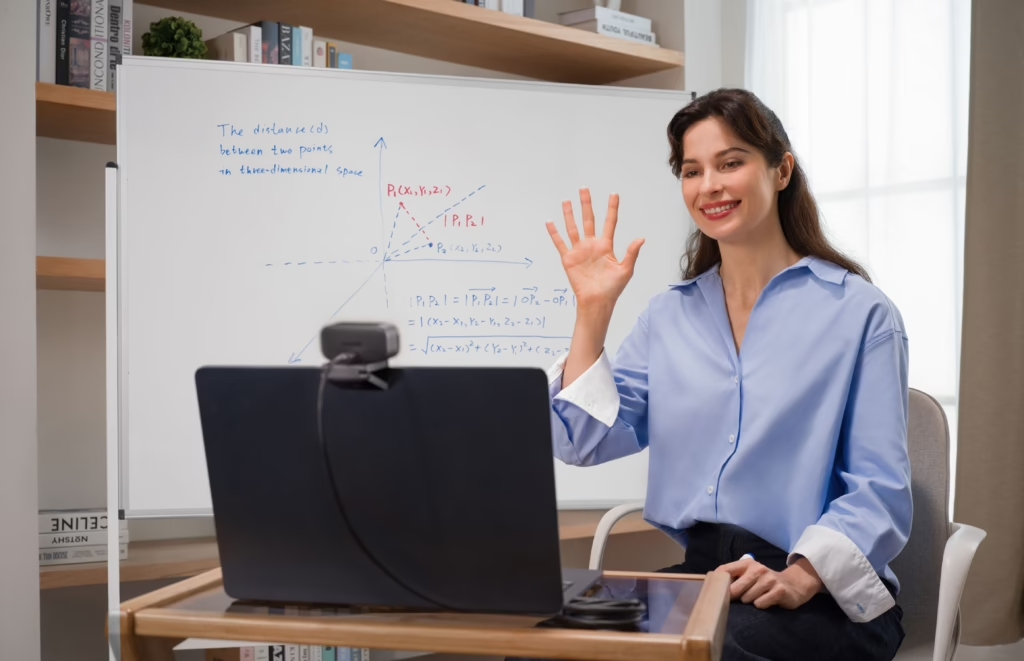
Case study 2: Online trainer from an office
You don’t have a classroom? No problem.
A simple wall chart or flip chart is sufficient.
With the Insta360 Link 2 Pro :
- You can alternate between facing the camera and the screen.
- Activate the Smart Whiteboard
- Take advantage of HDR to avoid blown-out highlights
It’s perfect for:
- Coaching
- Business training
- Private lessons
- Technical Webinars
Case study 3: demonstrations and technical diagrams
If you explain:
- A network architecture
- A sales funnel
- A business process
- A marketing strategy
The Smart Whiteboard allows you to:
- Draw clear diagrams
- Stay mobile
- Keep a clean image
The stabilization and gimbal of the Insta360 Link 2 Pro add an almost “studio” dimension.
Classic Whiteboard vs Smart Whiteboard
The Insta360 Link 2 Pro offers two modes:
classic whiteboard
- Clearly visible edges
- Camera well centered
- Simple to use
Smart Whiteboard
- Camera slightly off-center
- Perspective correction needed
- Less controlled environment
If you teach in different rooms or spaces, the Smart Whiteboard is clearly more flexible.
Limits to be aware of
Let’s be honest.
Even the Insta360 Link 2 Pro has its limitations:
- Strong reflections on the painting
- Black or very dark surface
- Partially hidden painting
- Lighting too dim
In these cases, soft side lighting greatly improves the result.
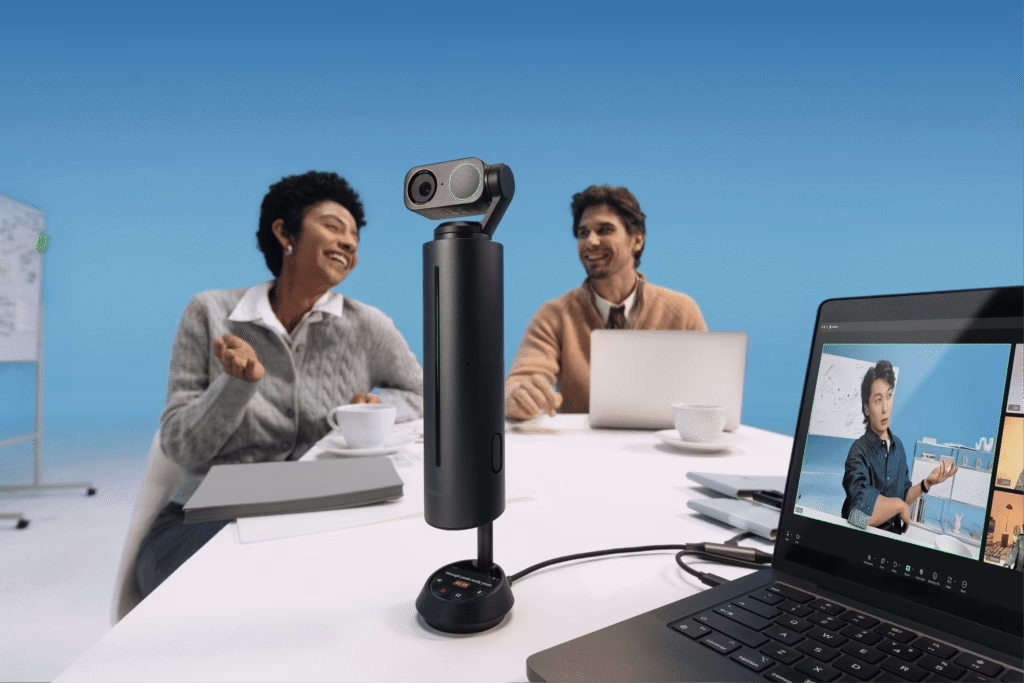
Is it worth it for a teacher or trainer?
If you:
- Signs regularly via video conference
- Often use a table
- Do hybrid training
- I want a professional image
So yes, the Insta360 Link 2 Pro is a real educational tool, not just a webcam.
It doesn’t replace your expertise.
But she values your work.
Do you want to teach like you would in person… with professional quality online?
The Smart Whiteboard of the Insta360 Link 2 Pro addresses a real need:
- Readability
- Simplicity
- Fluidity
- Professionalism
The question is no longer:
“Can my students see the board clearly?”
But rather:
How can I make my online courses even clearer and more engaging?
-1-150x150.avif)


Leave a Reply