
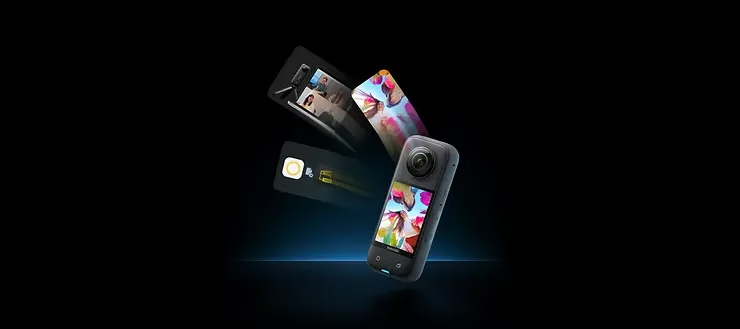
Connecting your Insta360 X3 to a smartphone unlocks a world of creative possibilities, allowing you to control your camera with unrivalled ease and precision. Whether it’s previewing your shots, managing the shutter release, viewing footage, or simply adjusting settings, the Insta360 app makes it all possible at your fingertips. Here’s how to make that vital connection.

Before you start
- Check your equipment: Make sure your Insta360 X3 is charged and ready for use.
- Application update: Download or update the Insta360 application on your smartphone via the App Store or Google Play to ensure you have the latest features and bug fixes.
Establishing the connection between your smartphone and the Insta360 X3
Activate Connections on your Smartphone
- Activate Wi-Fi and Bluetooth: Before attempting to connect your camera, make sure that Wi-Fi and Bluetooth are activated on your smartphone. These technologies are crucial to establishing and maintaining a stable connection with your Insta360 X3.
Switching on your Insta360 X3
- Start-up: Switch on your Insta360 X3 by pressing the power button. Once activated, the camera is ready to connect.
Using the Insta360 application
- Open the Insta360 application: Launch the application on your smartphone and access the main interface.
- Camera connection: Tap on the yellow camera icon at the bottom of the screen. You should see your camera listed by its name, which by default is “X3 “, where “” represents the last six digits of the serial number printed on the box of your Insta360 X3.
Making the first connection
- Connection confirmation: If you are connecting for the first time, a prompt will appear in the application. You will then need to confirm the connection on the camera’s touch screen.
In case of connection problems
- Manual Wi-Fi search: If automatic connection fails, open the Wi-Fi settings on your smartphone and search for the network on your Insta360 X3. Connect, then return to the Insta360 application.
Troubleshooting Tips
- Wi-Fi range: The camera’s effective Wi-Fi transmission distance (without interference or obstruction) is 10 meters. This distance may vary depending on the operating environment.
- Application update: Make sure your Insta360 application is up to date to avoid compatibility problems.
Conclusion Connecting your smartphone to the Insta360 X3
Connecting your Insta360 X3 to your smartphone via the Insta360 app opens up a whole new world of creative possibilities. Follow these simple steps for a seamless, integrated shooting experience. And if you run into any difficulties, don’t forget that the Insta360 support team is always there to help.
For more tips, tutorials and information on using your



Leave a Reply