Are you losing patience because your Insta360 X5 app connection keeps failing? This guide will help you identify the source of the problem, whether it’s Wi-Fi, Bluetooth, or your phone’s permissions. Use my troubleshooting flowchart to resolve the issue and get your recording going again without delay.
- Why is your Insta360 X5 refusing to connect?
- Quickly understand how the connection works
- Quick checklist before going any further
- The troubleshooting flowchart (diagnosis in less than 2 minutes)
- (a) Wi-Fi problem between the smartphone and the camera
- (b) Bluetooth problem (camera not detected)
- (c) iOS permissions issue — “Local Network”
- (d) Congested network or disturbed radio environment
- (e) The camera is already connected to another device
- Special cases often overlooked
- Quick connection reset procedure
- When should a network reset of the camera be considered?
- Common mistakes that waste time
- Summary table of the flowchart
- Regain control of your Insta360 X5
Why is your Insta360 X5 refusing to connect?
You have the perfect spot, but the app refuses to see the camera . It’s frustrating when technology ruins the moment.
Why this problem is common with connected cameras (Wi-Fi + Bluetooth)
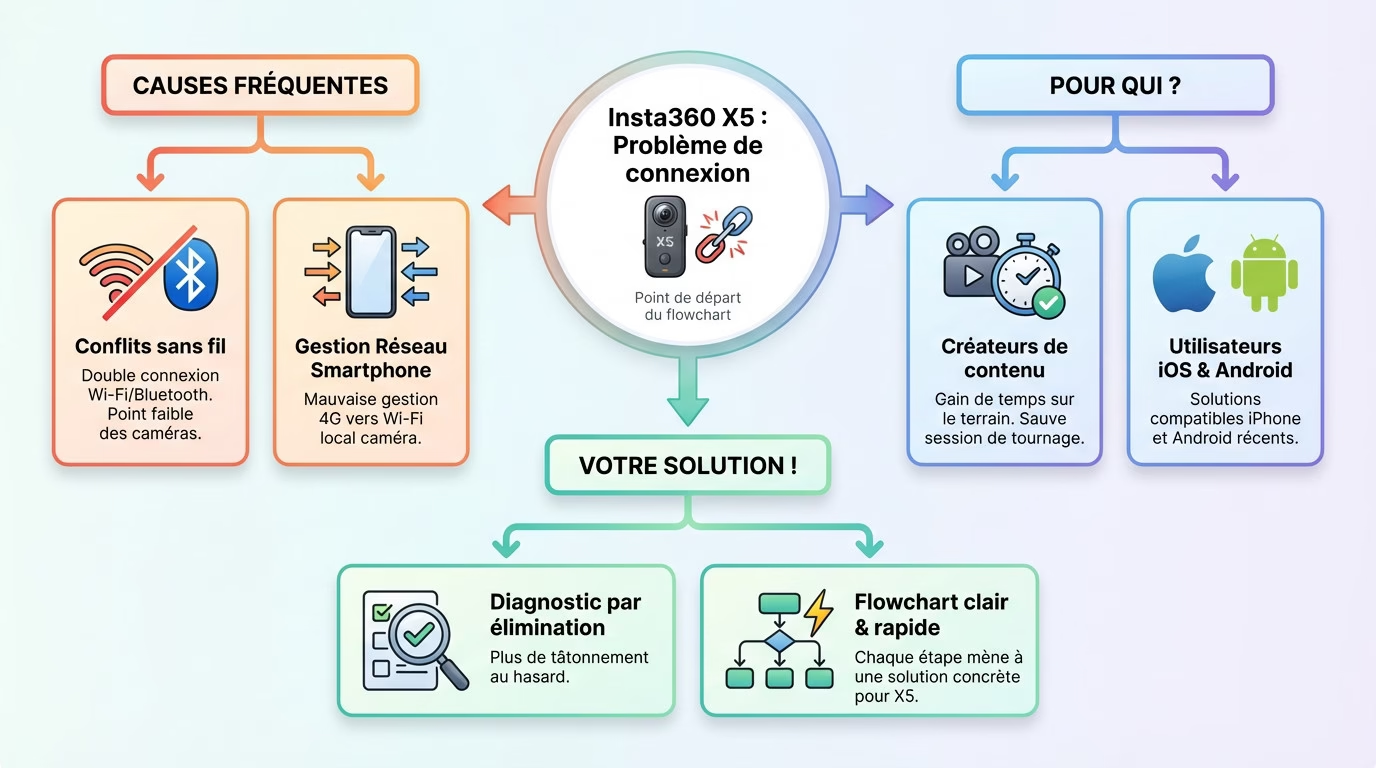
Conflicts between Bluetooth (detection) and Wi-Fi (image) are common with this equipment. Furthermore, smartphones struggle with the transition, often preferring to remain on 4G rather than switching to the camera’s local Wi-Fi.
Who is this guide for (iOS/Android users, creators, vloggers, travelers)?
This guide is for creators who can’t afford to waste any time during filming. We’ll save your session before the action gets too intense. The good news is: these fixes work for both iPhone and Android.
What you will find here: a clear flowchart to isolate the true cause
No more guesswork. The method involves testing each potential problem to eliminate false leads. You’ll follow a logical path where each check leads to a concrete solution to restore the connection with your X5 .

Quickly understand how the connection works
Before attempting a repair, you need to understand how these two devices really communicate to avoid silly mistakes.
The role of Bluetooth in camera detection
Bluetooth works like a digital handshake at startup. It wakes up the camera and signals its presence to your phone. This is the mandatory initial contact .
Without it, the application remains completely blind to your hardware . This is the first technical hurdle you need to overcome.
Role of the camera’s direct Wi-Fi for the final connection
Next, Wi-Fi takes over to transfer the large images. Imagine a very high-speed data tunnel. It ensures smooth video transmission .
Read our article “How to get started with the Insta360 X5 (beginner’s guide)” to master your device . It’s the logical next step.
Difference between “the camera is detected” and “the camera is connected”
Seeing the X5 icon does not mean the video stream is arriving. Detection happens via Bluetooth, the connection via Wi-Fi. Don’t confuse these two steps .
This is often where the process gets stuck for many. We see the camera, but nothing actually happens.

Quick checklist before going any further
Camera battery and actual status
A battery level below 10% can sometimes cause the wireless modules to shut down without warning. Check your X5’s touchscreen immediately, as this is often the number one cause of these malfunctions.
Also make sure that the camera has not remained stuck in deep sleep mode, which blocks all signals .
Camera application version and firmware
An outdated app won’t include the latest firmware, creating an immediate conflict. Update your apps from the App Store or Play Store to ensure system compatibility .
To learn more, check out our ultimate guide to mastering the Insta360 X5 and optimizing your equipment.
Connection method used (direct connection / automatic reconnection)
Automatic reconnection often fails if you’ve recently changed smartphones. It’s best to try a manual connection for testing ; this is the only reliable way to isolate the connection problem.
- Enable Wi-Fi on the X5.
- Search for the network on the mobile device.
- Enter the default password .

The troubleshooting flowchart (diagnosis in less than 2 minutes)
Follow this logical path to find the culprit .
Step 1 – Does the camera appear in the application?
Open the application and look at the list of detected devices. If the name “X5” is missing, Bluetooth is often the culprit .
If it appears in the list, click on it. We will then immediately proceed to the next step of this quick diagnostic.
Step 2 – Does the connection fail after selecting the camera?
You click, the circle spins, then nothing happens? This is typically a system authorization refusal or a Wi-Fi conflict that blocks everything.
Don’t restart the app right away, it’s pointless. Instead, observe the specific error message to identify the exact source of the problem .
Step 3 – Does a network error message appear?
” Network connection failed ” means that the Wi-Fi is completely blocked. This can be due to an incorrect password (which is random on the X5), or a system error.
Note whether the message refers to “Permissions” or “Timeout”. This determines whether you need to configure the phone or the camera .
(a) Wi-Fi problem between the smartphone and the camera
If Bluetooth is working but the image isn’t coming through , this is where the problem lies.
Check that the phone is properly connected to the camera’s Wi-Fi network.
Go to your phone’s system settings now. You should see a network with the exact name of your Insta360 X5 in the list. Simply click on it to force an immediate connection .
The problem? Sometimes, the phone stays connected to your home internet box out of pure habit.
Verify that the camera’s Wi-Fi password is correct
The code is no longer the standard 88888888; it is randomly generated on this model. Therefore, check it directly in the Wi-Fi settings on the camera’s screen.
If you entered it manually, make sure you haven’t made any mistakes. Capitalization is important .
Special case: smartphone that automatically switches to another network
Android and iOS hate local networks without proper internet access. They abruptly cut the X5 connection and revert to 4G to maintain web access.
Temporarily disable the “Wi-Fi Assist” or “Smart Switch” option to avoid this annoying behavior .
A simple test to confirm that the problem is indeed the Wi-Fi
Try connecting via an original USB-C cable if wireless fails.
If the cable is working, then your Wi-Fi chip or network settings are the only culprits. In short, it’s a specific issue, and we know what to fix .
(b) Bluetooth problem (camera not detected)
Nothing is showing up in the app? Bluetooth is probably not working, but we’ll fix that quickly .
Bluetooth enabled but camera invisible
First, check that Bluetooth is “discoverable” on your X5. It’s a small detail, but a firmware update sometimes disables this option without warning, making the device invisible .
Simply turn off Bluetooth via the control center, then turn it back on. This quick reset is often enough to get the device working again .
Distance and possible interference
For initial pairing, do not exceed a distance of two meters. Thick walls or metal are real signal killers that completely block the signal between devices.
Also stay away from microwaves or overly powerful Wi-Fi routers which often interfere with the frequencies .
Targeted Bluetooth restart (without restarting the entire phone)
Activate airplane mode for ten seconds. This forces a complete reset of the radio chips without needing to wipe all of your smartphone’s RAM by turning it off.
This is a well-known field tip that , without exaggeration, fixes 80% of connection bugs .
Cross-test with another smartphone
Borrow a friend’s phone to test the detection. If the X5 appears on their screen, the problem is clearly with your device and not the camera itself.
This is the ultimate test to determine whether you should contact customer service or just clean it .
(c) iOS permissions issue — “Local Network”
On iPhones, security is sometimes so strict that it ends up blocking the entire login process without warning.
What exactly is the purpose of the “Local Network” authorization?
Apple imposes this strict rule to protect your personal data from unauthorized access. In practice, it allows the app to “see” and identify the connected devices in your vicinity. It’s the mandatory entry point.
Without this manual validation, the Insta360 application remains completely isolated from the outside world . It will never be able to communicate with your camera.
How to check and correct permissions in iOS
Go to your phone’s Settings, then open the Privacy and Security menu. Look for the “Local network” line and make sure you check the green switch next to Insta360 .
Remember to restart the application immediately afterwards to confirm the change. This is the only way to apply the fix right away .
A typical symptom when this permission is blocked.
The application loops endlessly on the message “Searching…” without ever finding anything nearby. The most frustrating thing is that no explicit error message appears to alert you to the problem.
This is the most common hidden trap on new iPhones. You waste time when the solution is simple.
(d) Congested network or disturbed radio environment
Sometimes the problem comes from neither the camera nor the phone .
High-risk locations (accommodations, hotels, tourist spots, events)
In a crowded living room or at a large event, hundreds of signals constantly collide. Your X5’s Wi-Fi eventually gets completely lost in this invisible mass .
Modern hotels, with their numerous repeaters installed on each floor, are also major conflict zones for radio waves .
How to recognize a saturated radio environment
The connection is difficult to establish, but the image is constantly choppy? Or do you lose all signal as soon as you move even a meter away? That’s a sure sign .
Check the list of available Wi-Fi networks on your mobile. If you see fifty, the area is congested .
A simple trick to check if the problem is environmental.
Try changing rooms or going outside to test. If the connection magically returns away from the crowd, you’ve found the real culprit behind your problems .
Consider using the 5GHz band of the X5, as it handles this type of saturation much better .
(e) The camera is already connected to another device
The X5 is loyal; it only speaks to one master at a time .
Typical behavior when another person is connected
The camera consistently rejects your connection request. It appears to be busy even though the screen is free. You ‘re wasting your time looking for a non-existent problem.
This often happens during team filming. A colleague probably kept the application open nearby.
Case of automatic reconnections on an old phone
Your old tablet in your bag can “steal” the connection. It recognizes the X5 and connects to it in the background, thus blocking access to your current smartphone .
Turn off Wi-Fi on your other nearby devices. This is often enough to fix the problem immediately .
How to force the release of the connection
Restart the camera by pressing the power button. This action abruptly severs all active connections and resets the communication modules immediately.
It’s a drastic but effective way to regain control. You now have free rein to connect .

Special cases often overlooked
Sometimes, the devil really is hiding in obscure smartphone settings.
VPN active on the smartphone
A VPN redirects all your traffic to a remote server, which literally isolates the phone. As a result, it becomes unable to “see” the local camera connected via Wi-Fi . This is a common problem.
Temporarily disable it before launching the Insta360 application. You can reactivate it once your images have been transferred .
Data saving mode / power saving mode
These modes often throttle the performance of wireless chips to save battery life. They disable automatic network searches, preventing the X5 from being detected. The phone then becomes “blind”.
Switch back to standard mode for a stable connection . The connection requires all available power.
Application left open in the background
A crashed instance of the app can block all new login attempts . Force the application to completely stop in the Task Manager, then restart it. It’s a drastic but effective solution.
This is a basic rule in computing that applies here. A clean restart solves many problems .
Quick connection reset procedure
If nothing works, we start again from a clean slate without erasing everything.
Exact order of actions to be performed
Disable Wi-Fi in your phone’s settings. Turn off your camera, then turn Bluetooth back on. Finally, turn the X5 back on to initiate detection .
Follow this order meticulously to succeed. It’s the only way to avoid technical conflicts .
Why this order is important
The system needs to recognize the camera as a new device. This forces a renewal of the Wi-Fi security keys . The entire connection process then restarts cleanly.
It’s like doing a software “reset”. You keep your videos, but you repair the connection .
When should a network reset of the camera be considered?
You come here when nothing else seems to work despite your efforts. This is truly the last resort before having to contact technical support.
What the reset actually fixes
This procedure erases saved network names and corrupted passwords. This effectively cleans the camera’s internal communication chip, resulting in a clean configuration .
Your precious files on the SD card remain completely intact. Rest assured, you will not lose any images .
What the reset does not fix
If the antenna is physically broken, the reset will be completely useless. It also won’t repair faulty or damaged batteries. Software cannot repair hardware .
Don’t waste any time if the hardware is the problem. The part will probably need to be replaced .
Common mistakes that waste time
Avoid these classic pitfalls so you don’t spend two hours on a technical bug that can often be fixed in thirty seconds flat .
Reinstalling the application too soon
It’s often unnecessary and takes a particularly long time to download if your network is even slightly congested. The technical problem rarely lies within the application files themselves , trust me, it’s usually somewhere else.
First check your basic system settings , such as Bluetooth, before abruptly deleting everything.
Reset the camera without prior diagnosis
This is a common panic reaction, but it’s completely counterproductive to your workflow. You’ll have to manually reconfigure everything , including your specific shooting preferences. What a hassle for nothing.
Follow my troubleshooting flowchart above before pressing the red reset button .
Testing multiple parameters at the same time
If you change everything at once, you’ll never know what actually worked. Take it step by step to isolate the exact cause of the blockage . Be methodical.
This is the basis of any serious troubleshooting methodology to successfully connect the insta360 x5 to the application .
Summary table of the flowchart
Here’s the visual summary for those in a hurry.
Observed symptom → most likely cause → immediate action
This table summarizes the essentials for reacting quickly in the field . Take a screenshot: it’s your backup plan. Identify the symptom and test the corresponding action immediately.
| Symptom | Probable cause | Action to test |
|---|---|---|
| Hidden camera | Bluetooth/Wi-Fi inactive | Activate on the phone |
| Wi-Fi connection failed | Incorrect password | Forget the network and start again |
| Permission blocked | Local network (iOS) refused | Allow in iOS settings |
| Network overloaded | Wi-Fi interference | Move away from densely populated areas |
| Already connected | Other active device | Turn off Bluetooth on the third party |
| Low battery | Critical level | Top up before connecting |
Once the connection is restored, go further. Feel free to add GPS and speed data to your Insta360 X5 videos to transform your footage.
Regain control of your Insta360 X5
How to identify in less than 2 minutes whether the problem is with Wi-Fi, Bluetooth, or permissions
If the camera remains invisible, Bluetooth is often the culprit . A failing connection usually points to Wi-Fi. Still nothing? It’s probably a permissions issue.
This logical approach allows you to quickly isolate the fault . It works every time to save time.
The method to prevent the problem from recurring
Always keep your firmware up to date for flawless stability. Also, remember to disconnect your VPN before each shoot. A good routine will save you a lot of unnecessary stress .
Here are the essential steps to take to secure your workflow. Simply apply these three golden rules daily:
- Regular updates
- Battery charged
- VPN disabled
By following this step-by-step diagnostic, you can quickly isolate the culprit, whether it’s Bluetooth or iOS permissions. Restoring your Insta360 X5’s connection to the app takes only a few seconds with the right method. Try these solutions immediately to secure your future shoots and fully enjoy your camera.