
Post-production plays a crucial role in creating 360° videos, transforming raw footage into captivating and immersive works. In the world of 360° video, reframing is an essential technique that allows you to personalize and optimize filmed sequences. This step enables you to choose the best perspectives and camera angles after shooting, offering unprecedented flexibility in telling your story.
The Importance of Post-Production in the Creation of 360° Videos
Post-production is where the real magic happens. After capturing 360° footage, it’s essential to process and refine it to ensure the highest possible quality. Post-production allows for correcting shooting errors, adjusting colors, stabilizing images, and adding special effects. For 360° videos, this step is even more critical due to the immersive nature of the content. Well-executed post-production can transform an ordinary 360° video into an engaging and memorable experience for the viewer.
Advantages of Cropping 360° Videos
Cropping 360° videos offers several significant advantages:
- Creative Flexibility: Reframing allows you to choose and change the camera angle after filming. You are no longer limited by framing choices made on location; you can explore different perspectives and angles to find the best composition.
- Optimizing Visual Quality: By cropping videos, you can zoom in and out, adjust the field of view (FOV) and change the perspective, thus improving the visual quality of your footage.
- Time Saving: Cropping saves time during filming. Instead of focusing on getting every angle perfect on location, you can capture the scene as a whole and adjust the details in post-production.
- Error Correction: Reframing offers the ability to correct framing and composition errors that may occur during filming. You can also remove unwanted or distracting elements from the scene.
- Creating Multiple Content: A single 360° shot can be cropped to produce multiple videos with different perspectives, maximizing the use of your content.
Introduction to the Tools: Insta360 App and Insta360 Studio
To take full advantage of the benefits of 360° video cropping, Insta360 offers two powerful tools: the Insta360 App and Insta360 Studio.
- Insta360 App: This intuitive mobile app is designed for content creators on the go. It allows you to import, crop, and edit 360° videos directly from your smartphone. With features like Snap Wizard, ViewFinder, and AI editing technologies, the Insta360 app simplifies the editing process and enables you to produce high-quality videos quickly.
- Insta360 Studio: For creators who prefer working on a computer, Insta360 Studio offers a robust platform for editing 360° videos. This software provides precise control and advanced tools for cropping, editing, and adding special effects. Insta360 Studio also allows you to process videos at maximum resolution, ensuring optimal visual quality.
Using these tools, content creators can transform their 360° footage into professional and engaging videos. Whether you’re a passionate amateur or an experienced professional, the Insta360 App and Insta360 Studio offer the flexibility and power you need to bring your creative projects to life.
What is Reframing?
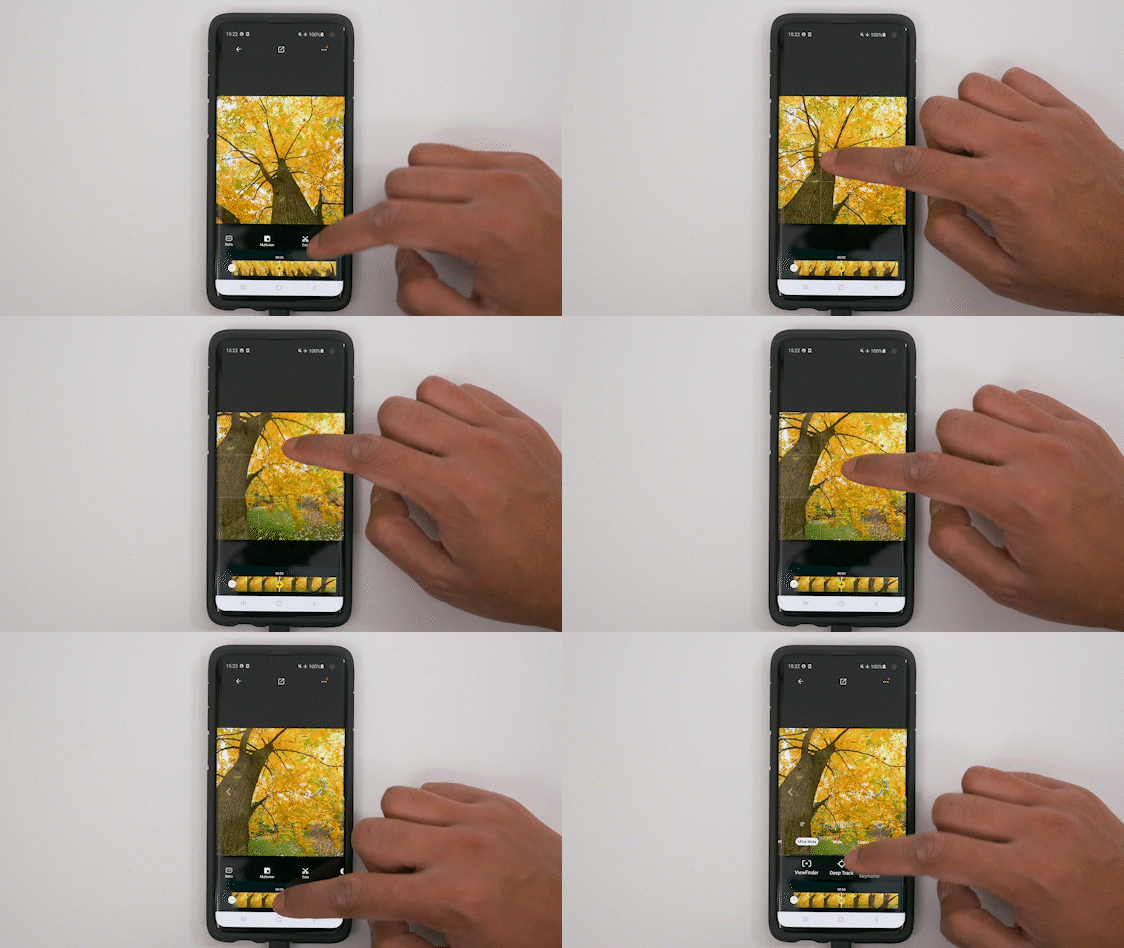
Cropping is an essential technique in 360° video editing, allowing you to change the angle and perspective of your footage after filming. Unlike traditional videos where the frame is fixed from the moment of capture, 360° videos offer unprecedented flexibility in post-production. Cropping gives you the freedom to explore and select the best camera angles, thus optimizing the quality and creativity of your final content.
Definition of Cropping in the Context of 360° Videos
In the context of 360° videos, reframing means the ability to choose and change the viewing angle and perspective after the video has been recorded. This allows you to revisit and readjust the composition of each scene, so that the viewer sees exactly what you want them to see. In other words, you can reframe the video as if you were reshooting it, but this time with complete control over every visual aspect.
Explanation of the Possibilities Offered by Reframing
Cropping offers a multitude of possibilities for customizing your 360° videos:
- Changing the Viewing Angle: You can adjust the viewing angle to highlight different elements of the scene, rotating 360 degrees to capture every detail from different angles.
- Changing Perspective: By changing the perspective, you can give your videos a different look and feel. For example, you can switch from a high-angle shot to a ground-level shot, or vice versa, to add dynamism to your footage.
- Zoom in and out: Cropping also allows you to zoom in or out on specific parts of the video. Zooming in lets you draw attention to important details, while zooming out provides a wider view of the scene.
- Adjusting the Field of View (FOV): You can also adjust the field of view to widen or narrow what the viewer sees. A wide FOV can create an immersive feeling, while a narrower FOV can focus attention on specific elements.
The Importance of Cropping to Achieve Creative and Personalized Videos
Reframing is crucial for creating creative and personalized videos. Here’s why:
- Creative Flexibility: Reframing allows you to experiment with different angles and perspectives, giving you the freedom to tell your story in a unique and engaging way. This opens up endless creative possibilities to captivate your audience.
- Quality Optimization: By adjusting the frame and angle after filming, you can correct shooting errors and improve the visual quality of your footage. This ensures that every moment of your video is perfect.
- Save Time and Effort: Rather than reshooting multiple times to get the right angle, you can capture the entire scene in a single take and adjust the angles in post-production. This saves time and reduces the effort required on location.
- Customization: Cropping allows you to personalize each video according to the distribution platform or desired storytelling style. Whether you’re creating content for social media, business presentations, or artistic projects, cropping helps you tailor your videos to your specific needs.
In conclusion, cropping 360° videos is a powerful technique that transforms how you edit and present your footage. With the Insta360 app and Insta360 Studio, you have sophisticated tools at your disposal to explore these possibilities and produce exceptional, personalized videos.
Crop and Edit 360° Videos
The flexibility and creativity offered by cropping 360° videos are greatly facilitated by the tools available in the Insta360 app and Insta360 Studio software. These platforms allow you to precisely adjust your footage and easily produce high-quality videos.
Overview of Available Cropping Tools and Options
Insta360 offers two main tools for cropping and editing your 360° videos: the Insta360 app for mobile devices and Insta360 Studio for computers. Each tool offers unique and complementary features to meet all your post-production needs.
Insta360 app
The Insta360 app is designed for content creators on the go. It allows you to easily import, edit, and share 360° videos directly from your smartphone. Here are some of the key cropping features available in the Insta360 app:
- Snap Wizard (Quick Edit): This feature simplifies the cropping process by recording your phone’s movements as live motion within your video. It’s ideal for creating videos quickly without the need for additional editing.
- ViewFinder: ViewFinder allows for quick cropping while also offering the ability to further refine your video. By simply tilting your phone, you can change perspective and record these movements to incorporate into your video.
- AI Edition: The app uses artificial intelligence technologies to analyze your footage and select the highlights. The AI automatically crops the videos, which is especially useful when you’re short on time.
- Deep Track 2.0: This feature allows you to automatically track a subject throughout the video. By drawing a frame around the subject, Deep Track 2.0’s AI will keep it centered in the frame, making reframing easier.
- Me Mode (Insta360 X3 only): Me Mode captures perfectly framed footage while keeping you centered in the shot. When used with the Invisible Selfie Stick, this mode is perfect for third-person shots without the need for subsequent cropping.
Insta360 Studio software
For content creators who prefer working on a computer, Insta360 Studio offers a powerful and detailed platform for editing 360° videos. Here are some of the cropping features available in Insta360 Studio:
- Keyframes: Keyframes are reference points in your sequence that define the angle and perspective at specific moments. You can add multiple keyframes to show different views throughout your video, offering precise control and maximum customization.
- Adjusting Perspective and Zoom: Insta360 Studio allows you to change the perspective and zoom in or out with precision. Use the mouse wheel to adjust the zoom and drag the mouse to change the viewing angle.
- Distortion Correction: For more natural videos, Insta360 Studio offers a linear view option that eliminates lens distortion, making images more realistic.
- Deep Track 2.0: As in the mobile application, Deep Track 2.0 is available in Insta360 Studio, allowing you to automatically track a subject in your sequences.
- High-Quality Export: Insta360 Studio offers advanced export options to ensure your videos are of the highest possible quality. You can adjust resolution and bitrate settings for optimal quality when streaming on different platforms.
Using the Insta360 app and Insta360 Studio, you have powerful tools to crop and edit your 360° videos with precision and creativity. Whether you’re working on mobile or desktop, these tools allow you to transform your raw footage into professional and engaging videos, ready to be shared with the world.
Essential Preparations
Before diving into cropping and editing your 360° videos, it’s important to properly prepare your workspace. Here are the essential steps to get started with the Insta360 app and Insta360 Studio.
Application Update
The first step is to make sure you’re using the latest version of the Insta360 app. Regular updates bring improvements, new effects, and additional features. To check for updates, go to the App Store or Google Play Store and download the latest version of the Insta360 app.
- Why is this important? Updates ensure that you have access to the latest features and optimizations, which can greatly improve your editing experience and the quality of your videos.
Importing Sequences
Once your app is up to date, you can import your video footage. There are several methods to transfer your 360° videos to the Insta360 or Insta360 Studio app.
- From an SD Card: If you have recorded your videos on an SD card, insert it into your phone or use a compatible card reader to transfer the files.
- Directly from your phone: If your videos are already on your phone, open the Insta360 app, select the import option, and choose the files from your device’s gallery.
Import steps in the Insta360 application:
- Open the Insta360 app.
- Go to the “Import” section.
- Select the video files to import from your SD card or your phone’s gallery.
- Once imported, your sequences will be available in the application for editing.
Shorten Clips and Adjust Aspect Ratio
Before you start cropping and adding effects to your videos, it’s often helpful to shorten your clips and adjust the aspect ratio according to the platform where you’re going to publish them.
- Trim Clips: Use the trimming tools to remove unwanted parts from the beginning and end of your clips. This allows you to focus on the key moments of your videos and makes subsequent editing easier.
How to shorten clips:
- Select the clip you want to edit.
- Use the start and end sliders to define the cutting points.
- Remove unwanted sections to keep only the essential parts.
- Adjust the Aspect Ratio: Choose the aspect ratio that best suits the platform on which you will share your video. Different platforms have specific video requirements, and the correct aspect ratio can improve the appearance and engagement of your content.
Common aspect ratios:
- 9:16 – Vertical Video: Perfect for Instagram Stories, Reels, and TikTok.
- 16:9 – Horizontal Video: Ideal for YouTube and widescreen displays.
- 1:1 – Square: Suitable for Instagram and Facebook posts.
- 2.35:1 – Cinemascope Wide Shot: Used for cinematic videos and short films.
How to adjust the aspect ratio:
- Select the clip you want to edit.
- Choose the appropriate aspect ratio option.
- Adjust the framing according to the selected ratio to optimize the appearance of your video.
By following these preparation steps, you’ll be ready to get the most out of the cropping and editing tools in the Insta360 app and Insta360 Studio. Proper preparation ensures a smoother editing process and professional results for your 360° videos.
Reframing Techniques
Using Key Images
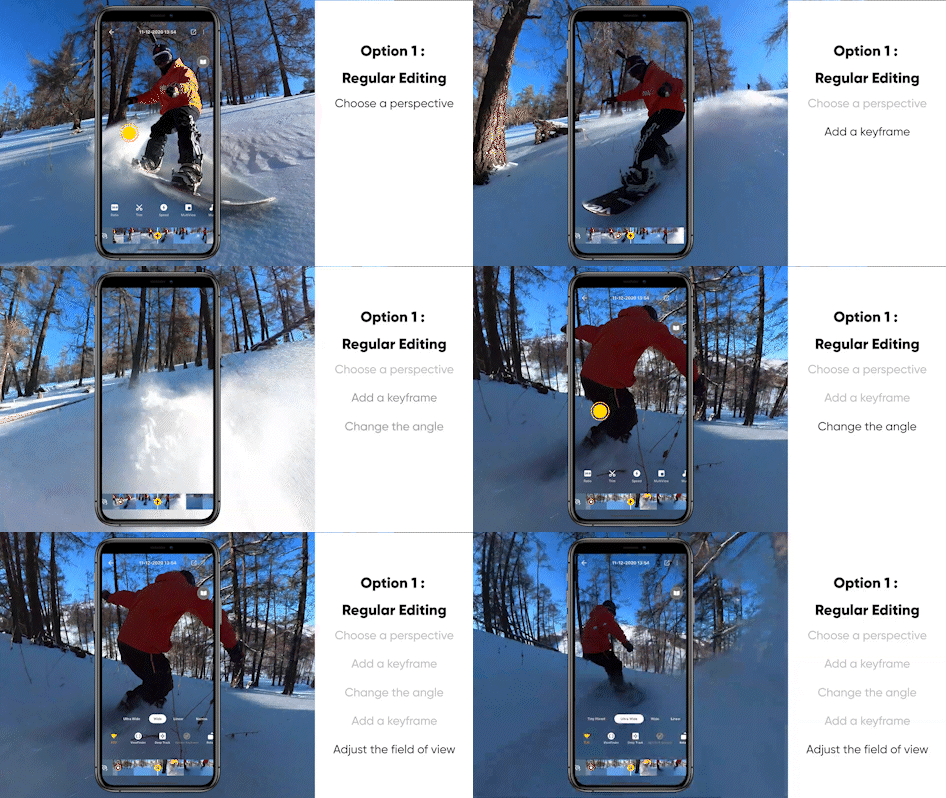
Keyframes are reference points in a video sequence that define specific changes in angle or perspective at precise moments. Here’s how to use keyframes for a custom edit:
What is a Key Image? A keyframe is a point in your video’s timeline where you specify a change in the camera angle, zoom, or perspective. These points allow you to create smooth transitions between different views.
Adding and Editing Key Images in the Insta360 App and Insta360 Studio
- Adding Key Images:
- Scroll through the timeline to the point where you want to change the angle.
- Adjust the angle and perspective by dragging your finger across the screen or using the mouse.
- Click on the “+” icon to add a key image.
- Key Image Modification:
- Return to the keyframe you wish to edit.
- Adjust the angle and perspective as needed.
- Click on “update keyframe” to save the changes.
Advantages of Keyframes for Custom Editing: Keyframes allow precise control over the camera angle and perspective, making it possible to create highly personalized and dynamic edits. They are ideal for sequences where multiple viewpoints are required.
Snap Wizard (Quick Edition)
Snap Wizard is a feature that simplifies cropping and quick editing of your 360° videos. Here’s how to use it:
Introducing Snap Wizard for Quick Editing: Snap Wizard records your phone’s movements as live motion in your video, allowing for quick editing without the need for additional editing.
Steps to Use Snap Wizard and Crop Videos in a Snap
- Open the clip you want to edit.
- Press “Snap”.
- Press the black shutter button to start recording.
- Swipe the screen with your finger or rotate your phone to change the angle.
- The movements will be automatically recorded in your video.
ViewFinder
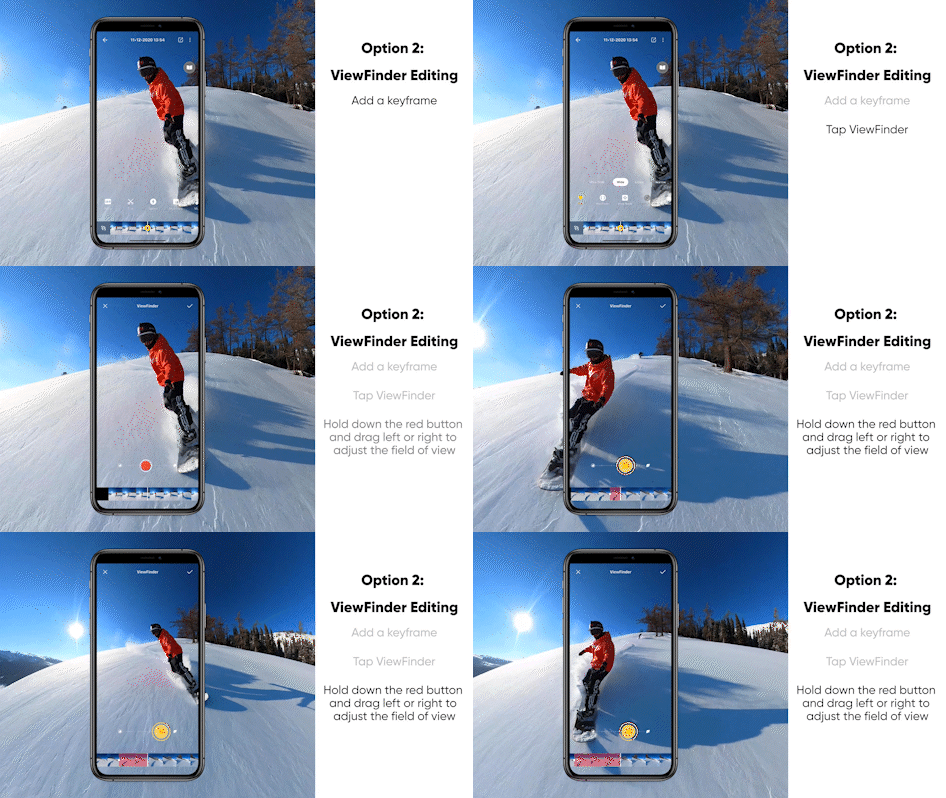
ViewFinder is a handy tool for making quick cropping adjustments while still allowing for subsequent adjustments.
Introduction to the ViewFinder Tool ViewFinder records the movements of your phone, but also offers you the possibility to further refine your video after the initial cropping.
How to Use ViewFinder for Quick Cropping with Later Editing Possibilities
- Add a keyframe using the “+” icon at the desired location on the timeline.
- Press the viewfinder.
- Press the record button and rotate your phone to change the perspective.
- The movements will be recorded and can be modified later.
AI Edition
AI editing uses artificial intelligence to automate the cropping of your videos.
Using Artificial Intelligence for Automatic Cropping: AI analyzes your footage, selects the highlights and edits them automatically, saving you time while achieving high-quality results.
Presentation of AI Editing Options and their Advantages for Quick Editing
- Select the video to edit.
- Click on Auto -> Analysis to start the AI analysis.
- Choose the desired perspective: compilation view, selfie view, front view, or drafts.
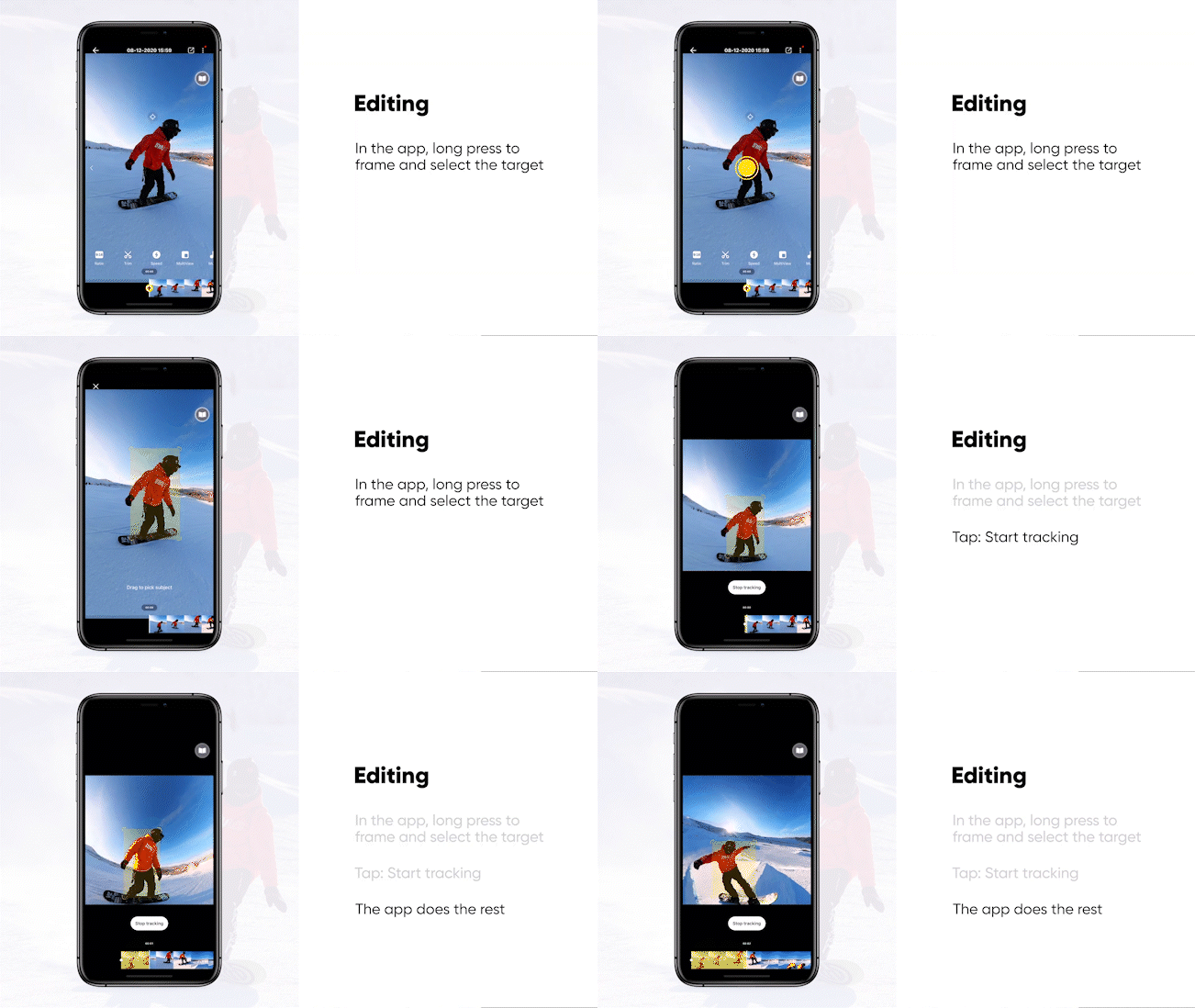
Deep Track 2.0
Deep Track 2.0 is an advanced subject tracking algorithm.
Explanation of the Deep Track 2.0 Tracking Algorithm: Deep Track 2.0 automatically keeps the main subject in the center of the image by following its movements throughout the video.
Deep Track 2.0 application to automatically track the main subject
- Press and hold on the screen.
- Draw a frame around the subject or object to be followed.
- Click on “Start tracking”.
Mode Me (Insta360 X3 Only)
The Me mode allows you to capture perfectly framed sequences without the need for subsequent cropping.
Introducing Me Mode for Shooting Without the Need for Subsequent Cropping. Me Mode records two files and combines them to create a 170-degree video, always keeping you in the center of the frame.
Using Me Mode with the Invisible Selfie Stick
- Mount the X3 on the invisible selfie stick.
- Turn on the X3 and select single-lens mode -> Me mode.
- Adjust the frame and ratio as desired.
Creative Effects with Key Images
Keyframes can be used to add creative effects to your 360° videos.
Small Planet
- Scroll down to the desired image.
- Pinch the screen or use the mouse wheel to zoom out until the image takes on a spherical shape.
- Add a key image using the “+” icon.
Barrel
- Place two keyframes 1-4 seconds apart.
- Adjust the horizon so that it is centered on the first keyframe.
- Click on “Rotation” on the second keyframe and rotate it 360 degrees.
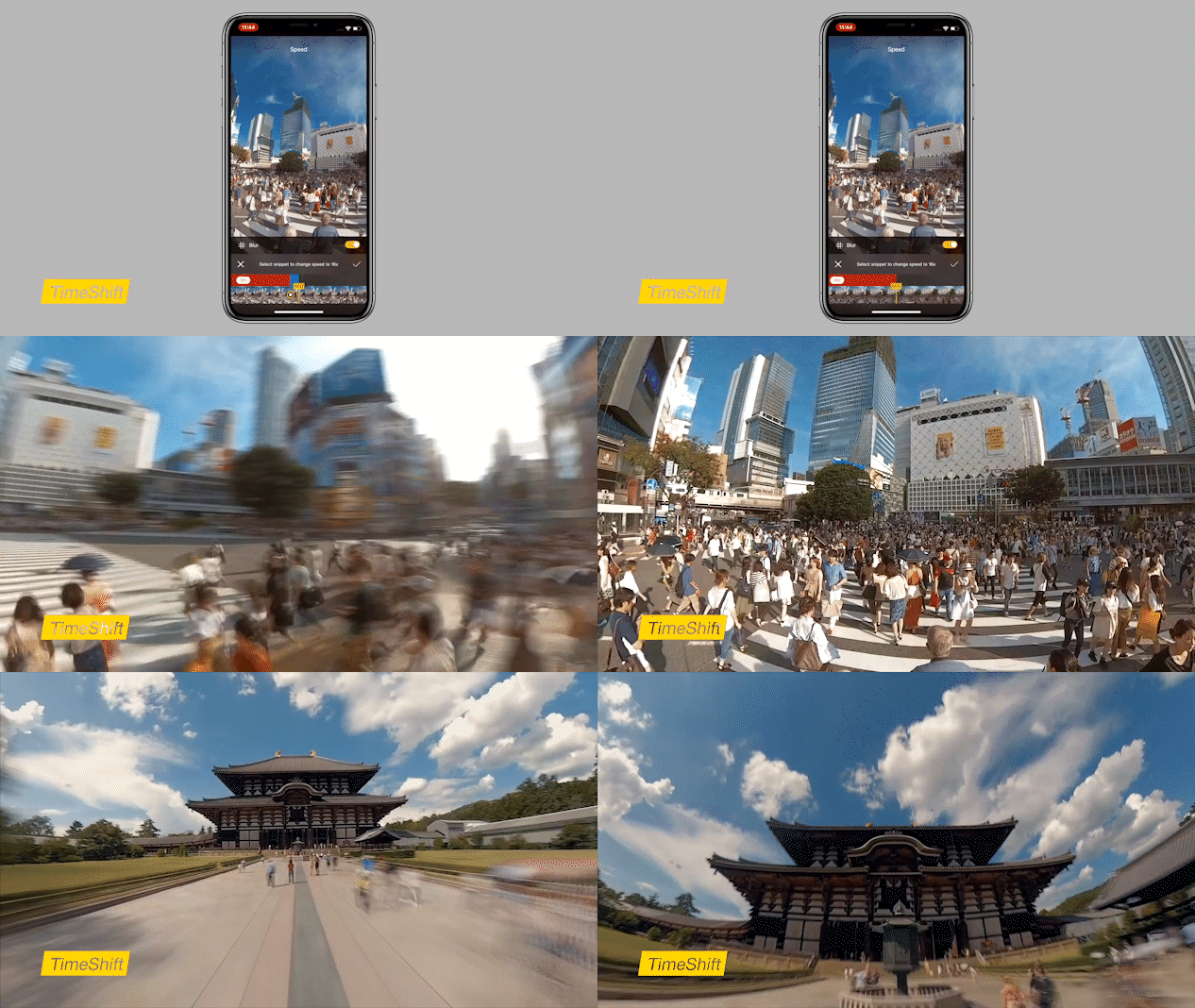
TimeShift
- Trim the video and select the start and end points.
- Activate the steering lock.
- Choose a perspective and add a key image.
- Choose the speed (recommended: 16x).
Specific Effects
Freeze Frame
- Press freeze frame.
- Define a starting view and an ending view.
- A super slow-motion transition will be automatically created.
Multi-View
- Press Multi-Views.
- Drag the timeline to select the desired footage.
- Choose from the following options: image overlay, split screen, car split screen.
Using Shot Lab to Add Viral Effects with AI Models
Shot Lab offers advanced AI editing features to easily add impressive effects to your videos.
By using these cropping techniques, you can transform your raw footage into creative and engaging videos. Whether you’re an amateur or a professional, Insta360’s tools and features allow you to create high-quality edits quickly and efficiently.
Practical Tips
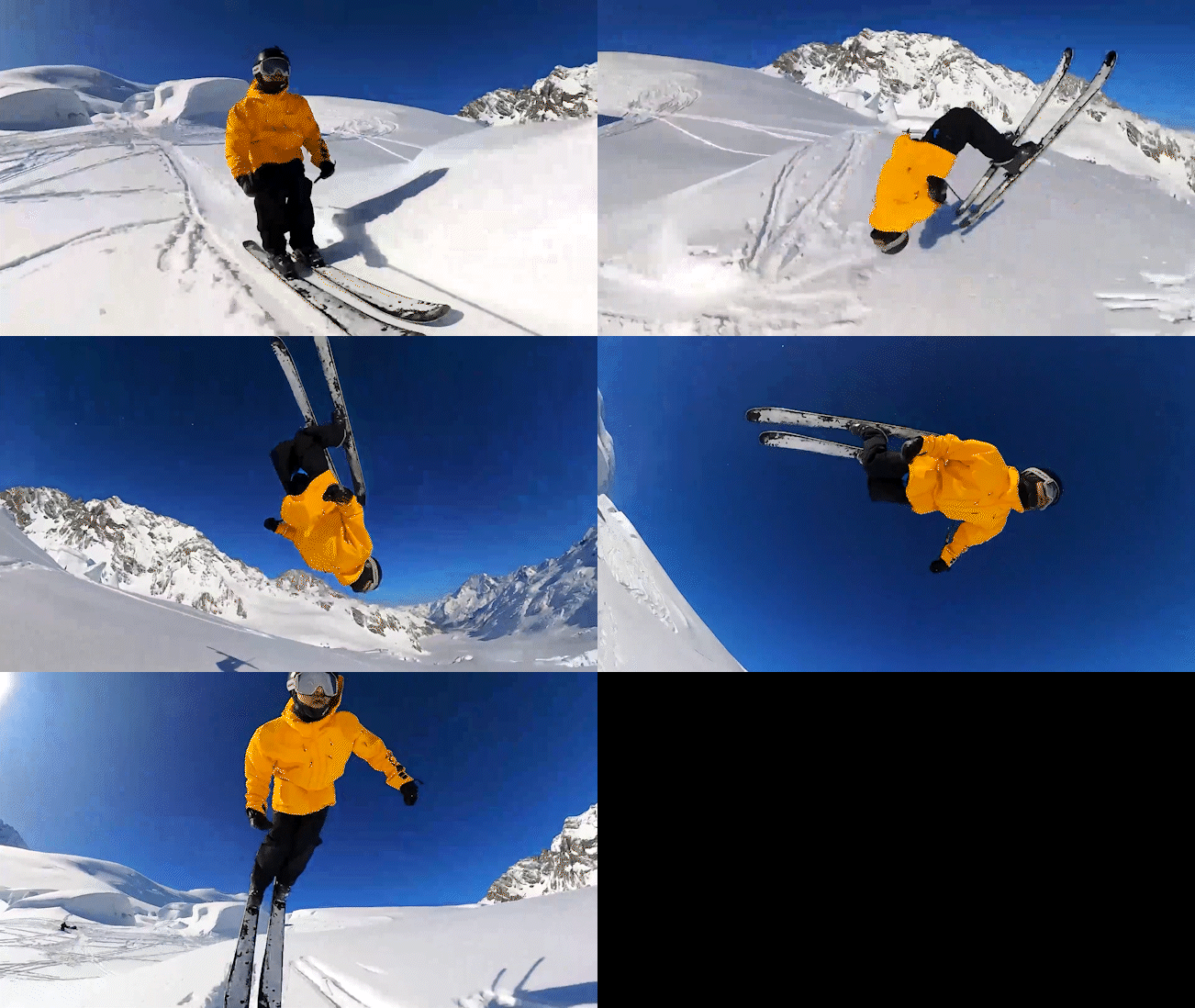
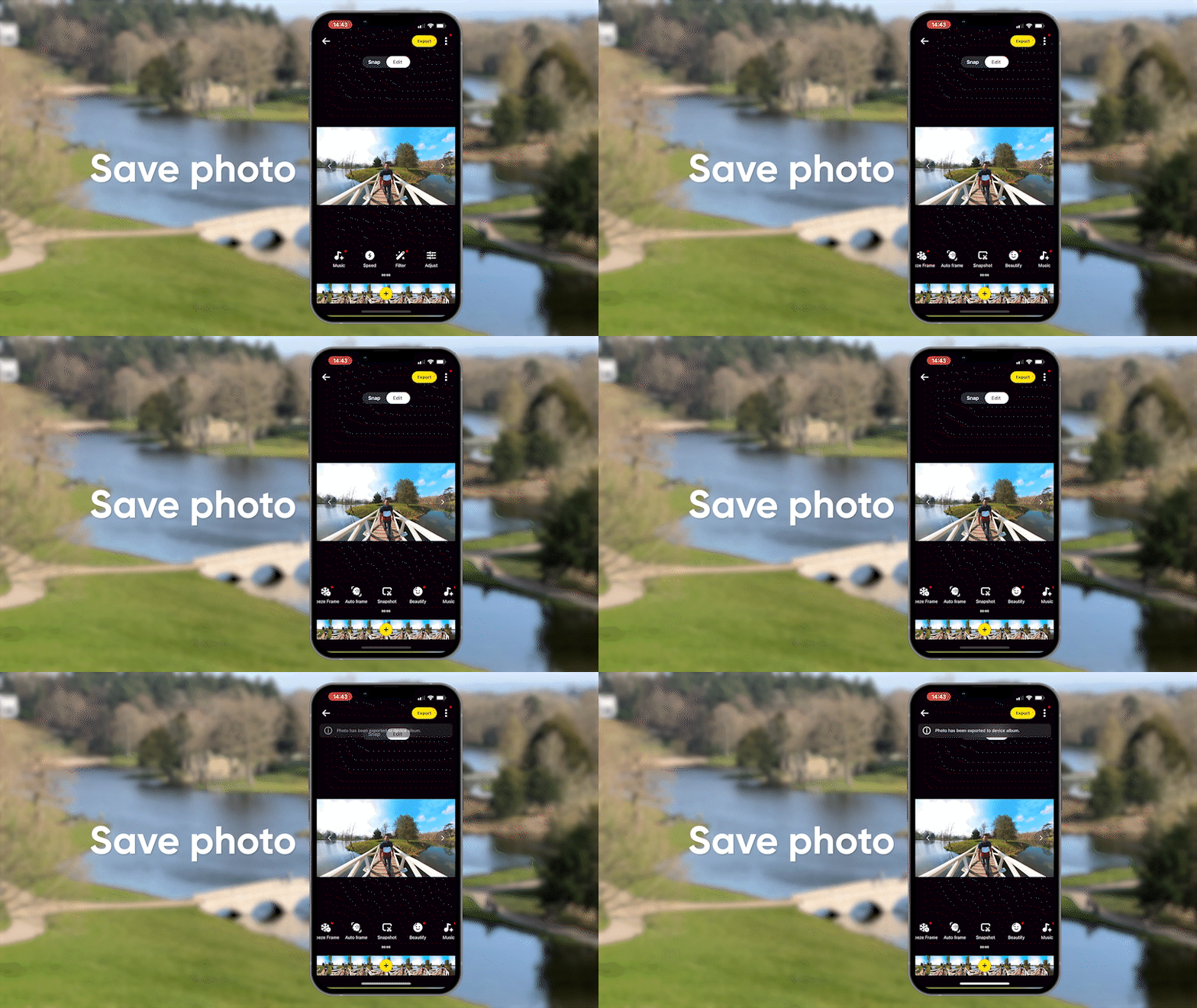
Screenshots and Using Screenshots for Stories
Screenshots are a great way to leverage your 360° videos to create additional content, especially for social media stories.
How to Take Screenshots:
- While your video is playing in the Insta360 app, tap the screenshot icon.
- Choose to save the image in flat format or in 360°.
Using Screenshots for Stories:
- Flat format screenshots can be used directly in your Instagram, Facebook, or Snapchat stories to provide a preview of your videos.
- 360° screenshots can be cropped in the Insta360 app to create dynamic and engaging images for your stories.
Combination of Videos Edited in the Mobile Application
The Insta360 app makes it easy to combine multiple edited videos to create coherent compilations or stories.
How to Combine Edited Videos:
- Go to the Insta360 app and select “Stories” -> “Create a Story”.
- Select the clips you want to combine.
- Arrange the clips in the desired order by dragging them.
- Add transitions, music, filters, and color adjustments to harmonize the entire video.
Advantages of Video Combination:
- Create longer, more engaging videos by combining multiple clips.
- Add effects and transitions to improve the flow and storytelling of your video.
Field of View Adjustment
The field of view (FOV) plays a crucial role in how your 360° videos are perceived. Adjusting the FOV can help highlight specific elements or create a sense of immersion.
How to Adjust the Field of View:
- Select a key image from your video.
- Click on the “Field of vision” option.
- Choose between the “Ultra Large”, “Large”, or “Narrow” options depending on your needs.
When to Adjust the FOV:
- Ultra Large: Use this option to capture wide and immersive scenes, perfect for landscapes or spacious environments.
- Large: This option is ideal for general scenes that require a good balance between detail and perspective.
- Narrow: Use a narrow field of view to draw attention to specific details or close-up subjects.
By following these practical tips, you can optimize your 360° videos for different uses and platforms, while ensuring high visual quality and engagement. Insta360’s tools offer remarkable flexibility for capturing, editing, and sharing high-quality content tailored to your creative and narrative needs.
Exporting Sequences
Exporting your 360° videos is a crucial step to ensure your final content is of the highest possible quality. Here are some tips and recommended settings to optimize your exported footage.
Recommended Settings for Optimal Quality
To ensure your 360° videos retain high quality upon export, follow these recommended settings:
- Resolution: Always export at the highest possible resolution, ideally 4K or higher, to ensure clarity and detail.
- Bitrate: Use a high bitrate to preserve video quality. A bitrate of 50 Mbps or higher is recommended for 4K video.
- Format: Export your videos in MP4 format for maximum compatibility with most platforms and devices.
How to configure these settings in Insta360 Studio:
- Select “Export” after you have finished editing.
- Choose the desired resolution, bitrate, and format in the export options.
- Click on “Start export” to finalize the process.
Export for Social Networks
Each social media platform has its own specifications and recommendations for videos. Here are some tips for exporting videos specifically to social media platforms:
- Instagram and Facebook:
- Format: MP4
- Resolution: 1080 x 1920 pixels for Stories (9:16), 1080 x 1080 pixels for square posts (1:1), 1280 x 720 pixels for horizontal videos (16:9)
- Bitrate: 5-10 Mbps
- YouTube:
- Format: MP4
- Resolution: 1920 x 1080 pixels (1080p) or 3840 x 2160 pixels (4K)
- Bitrate: 8-12 Mbps for 1080p, 35-45 Mbps for 4K
- TikTok:
- Format: MP4
- Resolution: 1080 x 1920 pixels (9:16)
- Bitrate: 3-6 Mbps
How to Export for Social Networks:
- Select the appropriate format and resolution based on the streaming platform.
- Ensure that the bitrate is set correctly to maintain video quality.
- Export the video and upload it to your desired platform.
Tips for Maintaining the Best Possible Quality
To ensure your videos remain high quality even after exporting, follow these tips:
- Avoid Multiple Re-encodings: Reduce the number of times you re-encode the video, as each re-encoding can lead to a loss of quality.
- Use Effective Compression Software: If you need to compress your video, use reputable software that minimizes quality loss.
- Check the Platform Upload Settings: Some platforms compress videos during upload. Consult the specific upload guides for each platform to optimize the settings.
Conclusion
Cropping and editing are essential steps in creating 360° videos. They allow you to transform raw footage into engaging and personalized content. By experimenting with the various tools and techniques offered by Insta360, you can discover new ways to tell your stories and engage your audience.
Encouragement to experiment with different tools and techniques
Feel free to explore and experiment with the many features available in the Insta360 app and Insta360 Studio. Each tool offers unique possibilities to enhance your videos and help you realize your creative visions.
Invitation to Explore Insta360’s Advanced Features
Insta360 offers a range of advanced tools that can transform your 360° videos into works of art. Whether you’re an amateur or a professional, these features allow you to push the boundaries of your creativity and produce high-quality videos that captivate and inspire.
Using the cropping and editing techniques described in this guide, you can create stunning 360° videos, ready to be shared with the world. Explore, experiment, and let your creativity flow with Insta360.
Affiliate Links and Related Articles
To optimize your experience with Insta360 products, here are some useful links:
Also check out our related articles for more tips and inspiration:
- Insta360 X3 vs Insta360 X4: A Detailed Comparison
- Best SD Cards for Your Insta360 X4
- Insta360 Ace Pro vs GoPro Hero 12: Complete Comparison
- Insta360 X4 vs GoPro Max: A Detailed Comparison
- SD Card for Your GoPro Hero 12: The Complete Guide
- Which SD card for the Insta360 X3?
- Insta360 Ace Pro vs GoPro Hero 12/11: Ultimate Comparison
- Which SD Card Should You Choose for Your Insta360 X4
By following these links, you can equip yourself with the best tools and accessories to improve your 360° videos and take advantage of exclusive discounts thanks to our affiliate partners.



Leave a Reply