
The Insta360 Ace Pro represents the pinnacle of 360-degree camera technology, providing professional videographers and passionate amateurs alike with the ability to capture stunning images with unparalleled ease. Packed with advanced features and exceptional image quality, the Insta360 Ace Pro stands out as a must-have tool for those looking to push the boundaries of video content creation.
However, to fully exploit the potential of this revolutionary camera, it is crucial to select the right SD card. The choice of SD card is not only limited to the storage capacity; It directly influences the smoothness of video recordings, the speed of file transfer, and consequently, the overall efficiency of your production workflow. A suitable SD card ensures that you get the most out of the Insta360 Ace Pro’s capabilities, allowing you to record and store high-resolution video without compromising on quality or performance.
In this article, we’ll explore the essential criteria to consider when choosing an SD card for the Insta360 Ace Pro, and provide recommendations to help you make an informed decision. Whether you’re a videography professional looking to maximize the efficiency of your equipment or an enthusiast eager to capture unforgettable moments with the highest fidelity, understanding the importance of a compatible SD card is the first step towards achieving your creative ambitions.

Why SD Card Choice Matters for the Insta360 Ace Pro?
The choice of SD card for the Insta360 Ace Pro goes far beyond the simple question of storage capacity. This is a key element that has a significant impact on two crucial aspects of videography: the quality of video recording and the speed of data transfer. Understanding these two aspects will allow you to optimize the use of your Insta360 Ace Pro and ensure a seamless user experience.
Impact on Video Recording Quality
When you record video, especially in 4K resolution or higher, the camera generates a large amount of data. A fast and reliable SD card is required to write this data without loss or delay. An undersized or too slow card could lead to data loss, choppy recordings, or even interrupted video capture, compromising the final quality of your content. Using an SD card that meets the specifications recommended by the Insta360 Ace Pro ensures smooth data writing, resulting in pristine video recordings.
Impact on Transfer Speed
The speed at which you can transfer your video files from SD card to computer or external storage is equally important, especially in a business context where time is precious. A high-speed SD card ensures fast transfers, significantly reducing waiting time during post-production. This allows creators to focus more on editing and creativity, rather than wasting valuable time on slow data transfers.
Technical Specifications of the Insta360 Ace Pro Influencing the Choice of SD Card
The Insta360 Ace Pro is designed to work optimally with SD cards that meet certain technical specifications, especially in terms of speed class. For high-resolution, high-bitrate recordings, a Class 10, UHS-I (Ultra High Speed Phase I) or better yet, UHS-II SD card is highly recommended. These classes ensure minimum write speeds sufficient to handle the large data streams generated by the camera, ensuring continuity of recording without compromising quality.
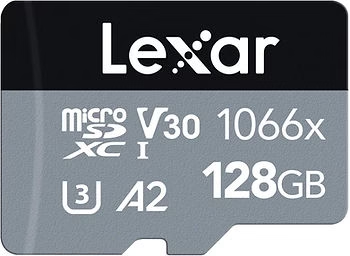

Types of SD Cards Compatible with the Insta360 Ace Pro
To ensure an optimal experience with your Insta360 Ace Pro, it is essential to choose a compatible SD card that meets its high technical requirements. Here are the recommended types of SD cards and the importance of their speed class.
Recommended Types of SD Cards
- SDHC (Secure Digital High Capacity): With storage capacity ranging from 2GB to 32GB, SDHC cards are a reliable choice for short to medium-length video recordings. They are good enough for most standard camera uses.
- SDXC (Secure Digital Extended Capacity): For those who need more storage space, SDXC cards offer a capacity ranging from 32GB to 2TB. These cards are ideal for long or high-resolution video recordings, allowing hours of video to be captured without compromising quality.
Importance of Speed Classes
The speed class of an SD card indicates its guaranteed minimum transfer speed. For the Insta360 Ace Pro, choosing a card with an adequate speed class is crucial to avoid interruptions during video recording.
- Class 10: With a minimum transfer speed of 10 MB/s, Class 10 cards are suitable for Full HD video recording and even for some 4K formats. They are the basic choice for good recording performance.
- UHS-I (Ultra High Speed Phase I): Offering transfer speeds of up to 104MB/s, UHS-I cards are recommended for 4K video recording or capturing high-frame-rate footage. They provide improved fluidity and speed for transferring large files.
- UHS-II: With transfer speeds of up to 312MB/s, UHS-II cards are the ultimate choice for professionals and those who demand the most from their equipment. They are perfectly suited for video recording in high resolutions such as 5K, 6K, or even 8K, ensuring uncompromised video capture.
Choosing an SD card with the right capacity and speed class is essential to maximize the performance of your Insta360 Ace Pro and to ensure the quality and smoothness of your videos. Investing in a high-quality card will allow you to get the most out of your camera, ensuring that you capture every moment with the highest fidelity.
Our SD Card Recommendations for the Insta360 Ace Pro
To ensure an optimal experience with your Insta360 Ace Pro, it is crucial to choose a high-quality SD card that meets the technical requirements of this advanced camera. Here are our recommendations, designed to help you maximize the performance of your Ace Pro:
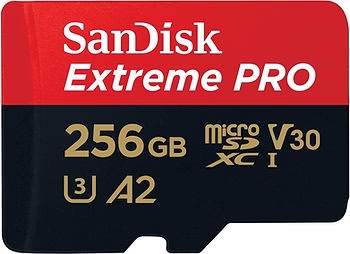
- SanDisk Extreme Pro SDXC UHS-I Card – 256GB
- Speed class: Class 10, UHS-I (U3), V30
- Why it’s suitable: Offers read speeds of up to 170MB/s and write speeds of up to 90MB/s, ideal for high-definition video recording and fast file transfers.
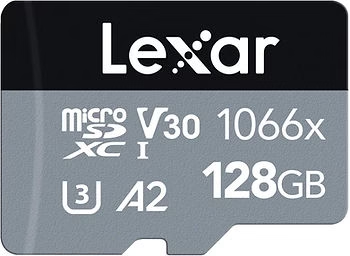
- Lexar Professional 1000x SDHC/SDXC UHS-II Card – 128GB
- Speed class: Class 10, UHS-II (U3), V30
- Why it’s suitable: Designed for ultra-fast performance that enables smooth video capture at 4K without interruptions as well as fast transfer speed for efficient workflow.
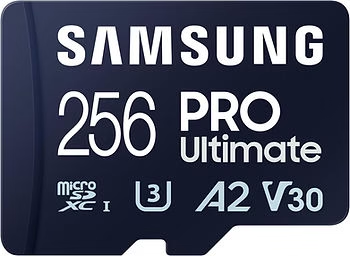
- Samsung PRO Ultimate SDXC UHS-I Card – 256GB
- Speed class: Class 10, UHS-I (U3), V30
- Why it’s suitable: Offers great value with reliable performance for 4K and Full HD video recording, as well as ample storage capacity for your adventures.
👉Samsung PRO SD card at the best price 👈
Benefits of using high-quality cards
- Reliability: High-quality SD cards are less likely to encounter read/write errors, ensuring that your precious videos and photos are safe.
- Performance: They ensure smooth, frame-loss-free video capture, especially important for high-resolution recordings.
- Transfer Speed: A fast map greatly improves the efficiency of file transfer, reducing the time spent in post-production.
Risks of using lower quality cards
- Data Loss: Low-quality cards are more prone to failure, risking you losing your records.
- Recording interruptions: Insufficient write speed can cause unexpected shutdowns during recording, especially at high resolution.
- Slow transfers: Reduced transfer speeds can slow down your workflow, making post-processing more laborious.
Investing in a top-quality SD card is essential to get the most out of your Insta360 Ace Pro. This not only ensures a better recording experience, but also greater peace of mind knowing that your data is stored securely.
How to Install and Format Your SD Card for the Insta360 Ace Pro
Properly installing and formatting your SD card is crucial to ensure the best performance of your Insta360 Ace Pro. Here’s a step-by-step guide to help you with this process:
Installing the Insta360 Ace Pro SD Card
- Make sure your Insta360 Ace Pro is turned off before inserting the SD card to avoid data corruption or damage to the camera or card.
- Locate the SD card slot on your Insta360 Ace Pro. It is usually located to the side or below the camera, protected by a cover or door.
- Insert the SD card into the slot, paying attention to the orientation. SD cards can only fit in one direction, if you feel resistance, don’t force it; Check the orientation and try again.
- Gently push the SD card until it clicks into place. If your camera has a cover for the SD slot, close it to secure the card.
Formatting Insta360 Ace Pro SD Card
On the Insta360 Ace Pro:
- Turn on your camera and go to the settings menu.
- Look for the option to format the SD card. This can vary by model, but is usually found under the storage or system settings.
- Select the option to format the SD card. You will receive a warning that all data on the card will be erased.
- Confirm the action to begin formatting. Once completed, your card will be ready to use with your Insta360 Ace Pro.
Via a Computer:
- Insert the SD card into your computer’s card reader or use an adapter if necessary.
- Open File Explorer and locate your SD card under the storage devices.
- Right-click on the SD card and select the “Format” option from the menu.
- Choose the recommended file system (usually FAT32 for cards 32GB or less, and exFAT for cards larger than 32GB) and make sure the “Quick Format” option is unchecked for a full format.
- Click “Start” to start formatting. Once done, properly eject the SD card before removing it.
Important Tips
- Always back up your data before formatting the SD card as this process will erase all the data present on the card.
- After formatting, check the available capacity to make sure that the SD card is properly recognized by the camera or computer.
- For optimal use, it is recommended that you format the SD card in the camera you plan to use, as this ensures the best file system and configuration for that specific device.
By following these steps, you ensure that your SD card is perfectly set up for use with your Insta360 Ace Pro, allowing for a smooth and efficient experience when shooting and transferring data.
Maintenance and Tips to Maximize the Life of Your Insta360 Ace Pro’s SD Card
To keep your SD card reliable and efficient over time, especially when used with high-performance devices like the Insta360 Ace Pro, proper maintenance is crucial. Here are some essential tips to keep your SD card in tip-top shape:
Care instructions
- Storage: Keep your SD cards in a dedicated case or card holder to protect them from dust, moisture, and shocks. Avoid exposing them to extreme temperatures.
- Cleaning: To clean the gold contacts on your SD card, use a soft, lint-free cloth lightly dampened with isopropyl alcohol. Allow to air dry before reusing or storing the card.
- Manipulation: Always handle your SD card by the edges and avoid touching the gold contacts to reduce the risk of electrostatic damage.
Error Prevention and Data Backup
- Regular backup: Be sure to transfer your data to a computer or cloud storage regularly to prevent content loss in the event of a card failure.
- Correct use: Never eject the SD card from your camera or computer during a data transfer to avoid file corruption.
- Periodic formatting: Formatting your SD card in your Insta360 Ace Pro camera after every big project can help maintain its performance and prevent file errors.
Choosing the right SD card for your Insta360 Ace Pro is essential to ensure a seamless video recording experience. A high-quality card, combined with proper maintenance, not only ensures optimal performance but also extends the life of your SD card. We encourage you to invest in recommended SD cards and follow the shared maintenance tips to maximize the reliability and security of your precious creations.
Your gear deserves the best support, and with the best practices, you can rely on your SD cards to back up and protect your adventures captured with the Insta360 Ace Pro.




Leave a Reply