
Affiliate note: some links in this guide are affiliate links. If you buy through them, I may earn a commission at no extra cost to you.
If you just unboxed your Insta360 X4, the right way to start is not to dive into every menu immediately. First, make sure the camera is protected, activated, updated and set up with the right card and the right default shooting mode. That alone prevents most beginner mistakes.
First 10 minutes checklist: install the lens guards, insert a fast V30 microSD card, fully charge the battery, connect the X4 to the Insta360 app, activate it, update the firmware and start with a simple 360 preset before touching advanced shooting modes.
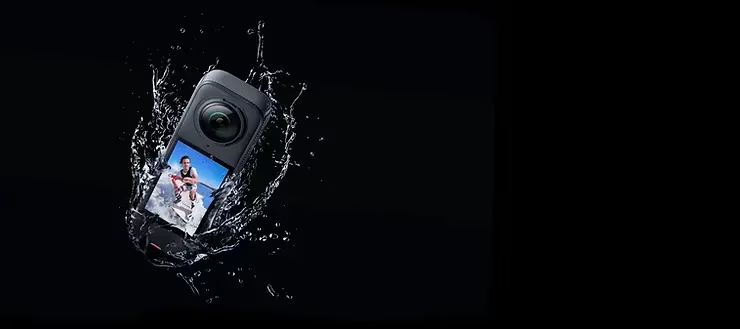
What to do before your first recording
- Install the lens guards before carrying the camera around loosely.
- Insert a proper microSD card rated V30 or better.
- Charge the battery fully instead of starting from a half-filled cell.
- Update the firmware before judging performance or stability.
- Test one short clip and review it before going out for a long shoot.
This sequence sounds basic, but it avoids the most common first-day problems: overheating anxiety caused by outdated firmware, corrupted recording attempts from slow cards, and scratched lenses before the camera has even seen its second outing.
1. Check the box contents and protect the camera first
Your box should include the camera, battery, USB-C cable, lens protection and the standard paperwork. Before you care about shooting modes, make sure the camera is physically ready to be used. The X4 lenses are exposed by design, which is exactly why lens guards matter from day one.
If you are already thinking about what to buy next, this separate guide on the best Insta360 X4 accessories will help you avoid unnecessary purchases.
2. Use the right microSD card from the start
A surprising number of camera complaints come from storage, not from the camera itself. For the Insta360 X4, use a fast and reliable microSD card. A V30-rated card is the sensible minimum. If your card is old, inconsistent or already full of files from other devices, you are creating your own problems before your first real shoot.
If you want a precise buying recommendation, read this SD card guide for the Insta360 X4.
3. Activate the camera in the app and update the firmware
The first connection to the Insta360 app is not just a formality. It is the step that activates the camera and often unlocks firmware improvements that affect stability, compatibility and battery behavior. Turn on Wi-Fi and Bluetooth on your phone, connect to the X4 in the app, confirm the pairing on the camera and install the latest update if one is offered.
Do not skip this because you are in a hurry. A camera on old firmware can feel rougher than it really is.
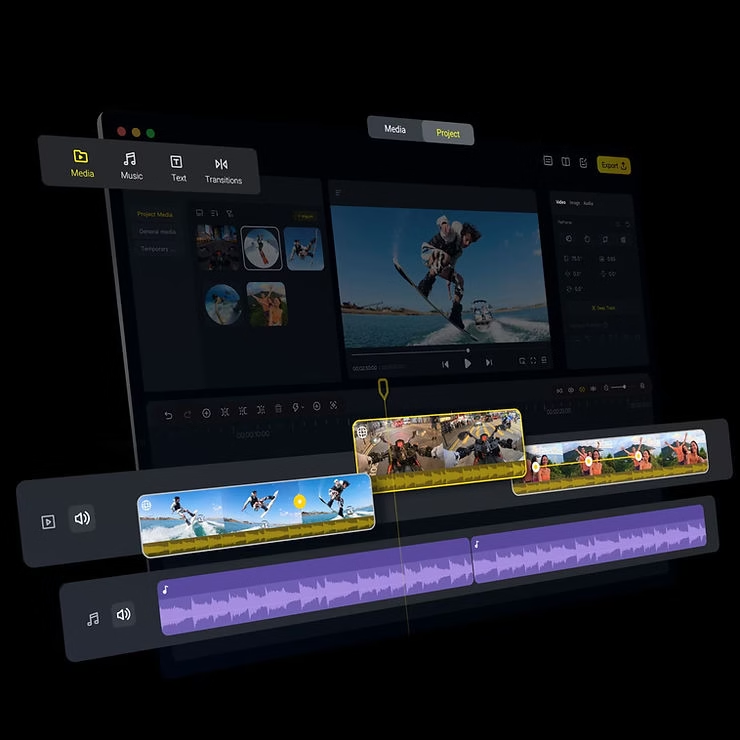
4. Start with simple settings, not every feature at once
The smartest beginner move is to start with a simple, stable shooting workflow. Do not try to learn every creative mode at once. Start with standard 360 capture, review the footage, and only then branch into reframing, slow motion, InstaFrame or more advanced editing choices.
- Use 360 mode first if you want maximum framing freedom later.
- Keep the selfie stick vertical for cleaner invisible-stick results.
- Clean the lenses before every shoot, especially outdoors.
- Do a short test clip before a long ride, trip or client session.
5. Build a first workflow you can repeat
A camera becomes easy only when your workflow becomes repeatable. For most creators, that means a simple routine: battery charged, card formatted, app synced, lens check, one preferred shooting mode and a predictable export path. Once that feels natural, every advanced feature becomes easier to use well.
If you plan to shoot in colder weather, this related article on filming in cold weather with the Insta360 X4 is worth bookmarking too.
3 beginner mistakes to avoid
- Using a weak card and blaming the camera.
- Skipping firmware updates and assuming the first behavior you see is normal.
- Buying five accessories immediately instead of learning the base workflow first.
Quick FAQ
Do I need the app to use the Insta360 X4?
You can use the camera without the app later, but the app is the easiest way to activate it, update firmware and manage your first setup properly.
What should I buy first after the camera?
For most users: lens protection, an invisible selfie stick and one mount that matches your main use case.
Should I start in 360 mode or single-lens mode?
Start in 360 mode if you want the easiest path to reframing later. Use single-lens mode only when you know you want a more traditional action-cam workflow.
My recommendation
If you want the cleanest possible start with the Insta360 X4, focus on the basics first: protect the lenses, use a proper V30 card, activate the camera, update the firmware and build one repeatable shooting routine. That gives you a better first experience than diving straight into every feature or every accessory.
Once you have that foundation, the next step is simple: choose the accessories that fit your actual usage. This is exactly what I break down in the Insta360 X4 accessories guide.




Leave a Reply