
The Insta360 GO 3S is an incredibly compact camera that lets you shoot 4K video while offering complete freedom thanks to its hands-free mounting capability. Whether you want to capture action-packed moments, travel scenes, or create immersive POV videos, shooting in 4K guarantees exceptional quality. To help you get the most out of your Insta360 GO 3S, we’ve put together this handy guide covering essential settings and top tips for capturing flawless 4K footage.
1. Why film in 4K with the Insta360 GO 3S?
Filming in 4K means recording at four times the resolution of standard HD, resulting in stunningly clear videos rich in detail. For content creators, this quality is especially useful for giving videos a professional look, whether for platforms like YouTube, social media, or personal projects. With the Insta360 GO 3S , filming in 4K allows you to capture every detail, even in fast-paced action scenes or diverse environments.
This high resolution is ideal for moments where detail is key, such as capturing landscapes, extreme sports, or unforgettable travel moments. With the Insta360 GO 3S, shooting in 4K also offers greater flexibility during editing. You can crop your shots without sacrificing quality, add zooms or dynamic effects, all while maintaining remarkable sharpness.
2. Essential Settings for Filming in 4K
To get the best possible 4K video quality with the Insta360 GO 3S , it’s essential to configure the camera settings optimally. Here are the main settings to consider:
- Resolution and Frame Rate : Make sure you set the camera to 4K resolution. For fast-paced action sequences, a frame rate of 60 fps (frames per second available in 2.7K) is ideal for smooth motion. If you’re filming quieter scenes or landscapes, you can choose 30 fps for cinematic quality.
- FlowState Stabilization : Enable FlowState stabilization to ensure smooth footage even when the camera is moving. This is especially useful for handheld shooting or action videos, where keeping the camera steady is difficult.
- White Balance : Adjust the white balance to suit the lighting conditions. For scenes in bright daylight, choose a daylight preset. For indoor environments or low-light scenes, adjust the white balance manually to maintain natural and accurate colors.
- Color Mode : The “Vivid” color mode is ideal if you want vibrant and impactful images. If you prefer to adjust colors in post-production, choose the “FLAT” mode for more flexibility during color grading.
3. Tips to Optimize Video Quality
a) Choosing the Right Angle and the Right Mount
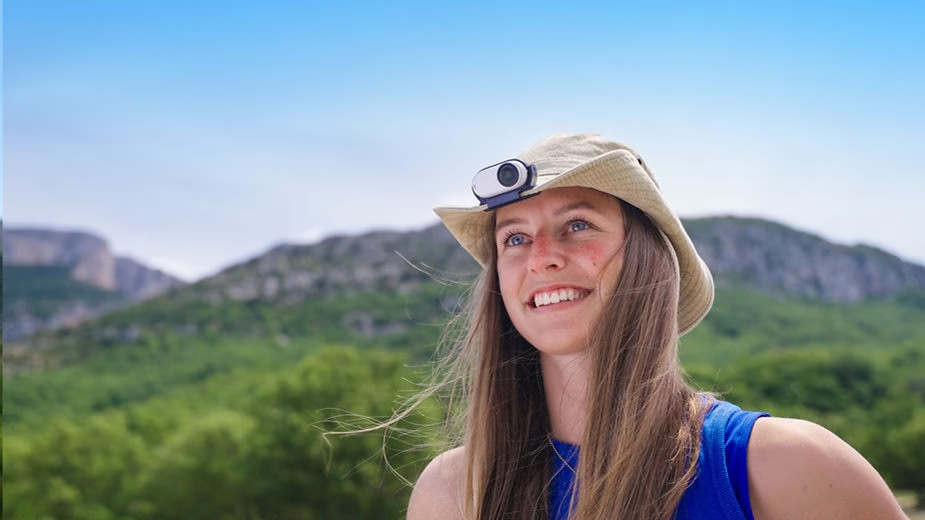
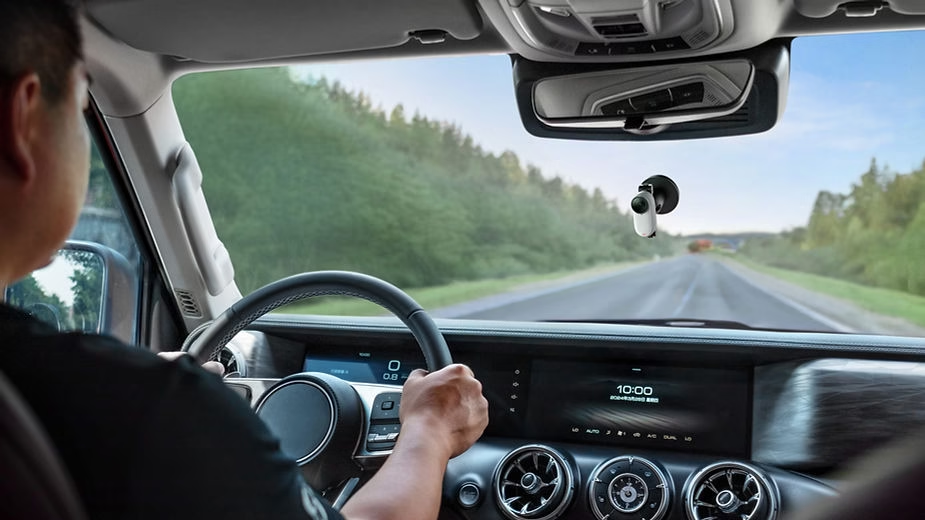
The Insta360 GO 3S is a camera that excels at capturing unique angles thanks to its lightweight design and hands-free mounting capability. Use the magnetic neck strap or the swivel clip to achieve an immersive POV (point of view) perspective. For action videos, attach the camera to your helmet or gear to get dynamic angles that will draw the audience into the experience.
b) Harnessing Natural Light
Light plays a crucial role in video quality. For clear, vibrant images, film in good natural light conditions whenever possible. Outdoors, the ideal times are the golden hours (just after sunrise and before sunset), which offer soft, flattering light. If you’re filming indoors, make sure you have enough light to avoid visual noise and maximize video quality.
c) Use the Insta360 app for final adjustments
The Insta360 app lets you remotely control many settings and see what the camera is recording in real time. This is especially useful for checking framing and adjusting settings to suit the scene. You can also use the app to apply effects like TimeShift , which speeds up certain parts of the video to make it more dynamic.
d) Check the Memory and Battery
4K video is demanding in terms of storage space and power. Make sure the Insta360 GO 3S has enough memory for the footage you plan to shoot, and keep the battery fully charged. It’s always recommended to have an external battery pack or power bank handy to extend shooting sessions without interruption.
4. Editing and Post-Production: Get the Most Out of Your 4K Footage
Once you’ve filmed your footage in 4K, editing is where the magic happens. Here are some tips to get the most out of your videos:
- Cropping and Stabilization : Thanks to the high 4K resolution, you can crop your footage to highlight a particular subject without losing quality. The Insta360 Studio app also allows you to adjust stabilization in post-production for even smoother results.
- Color Grading : If you filmed in LOG/FLAT mode, color grading will allow you to give your videos a unique look. Use editing software such as Adobe Premiere Pro or DaVinci Resolve to adjust the hues, shadows, and highlights.
- Add Dynamic Effects : The Insta360 GO 3S offers special effects such as TimeShift and Bullet Time . These effects can make your videos more immersive and impressive. Feel free to experiment with these options to add a touch of creativity to your videos.
Conclusion: Create stunning 4K videos with the Insta360 GO 3S
Shooting in 4K with the Insta360 GO 3S is an incredibly rewarding experience for any content creator. Thanks to its numerous settings and features, you can capture moments with stunning clarity and quality. Whether you’re an experienced videographer or a passionate amateur, this guide will help you optimize your shots and create memorable videos. Consider these settings and tips, and start shooting captivating footage that will impress your audience today.





Leave a Reply