The Insta360 GO 3S is an innovative and compact camera that lets you capture incredible moments with ease. But it’s not just a high-quality camera: it also comes with a very practical feature for all iPhone and iPad users, thanks to its compatibility with Apple Find My. This integration allows you to locate your camera via Apple’s Find My app, making tracking your gear as easy as possible. Find out how to use this feature and avoid losing your Insta360 GO 3S during your adventures.

Why is Apple Find My Compatibility Important?
The Insta360 GO 3S is a small, lightweight camera designed for on-the-go shooting. These features make it an incredible tool for creative shots, but can also make the camera easier to lose or forget. Whether you’re hiking, biking, or simply filming an event, it’s easy to lose track of such a compact camera. That’s where Apple Find My compatibility comes in, giving you the peace of mind of knowing you can find your camera at any time.
Thanks to the integration with Find My, you can locate your Insta360 GO 3S from your Apple device. This can be especially useful when you set the camera down somewhere to capture a scene, or if it accidentally gets left behind during a filming session. Rather than worrying about losing it, you can focus fully on creating.
How to Enable Find My on the Insta360 GO 3S
Enabling Apple Find My on the Insta360 GO 3S is quick and easy. Here’s how you can set it up:
- Open the Insta360 App : First, make sure your camera is connected to your phone via the Insta360 app. Also, make sure Bluetooth is turned on for a smooth connection.
- Access Settings : Once logged in, go to the device settings via the app. Look for the Find My option, which should be available under the security settings.
- Enable Find My : Click the option to enable Find My and follow the on-screen instructions to link your camera to your Apple ID. This will allow your Insta360 GO 3S to sync with the Find My app on your iPhone or iPad.
- Verify Setup : Once activation is complete, open the Find My app on your Apple device. You should see the camera listed among your devices. This ensures that setup was successful and you can now locate the camera at any time.
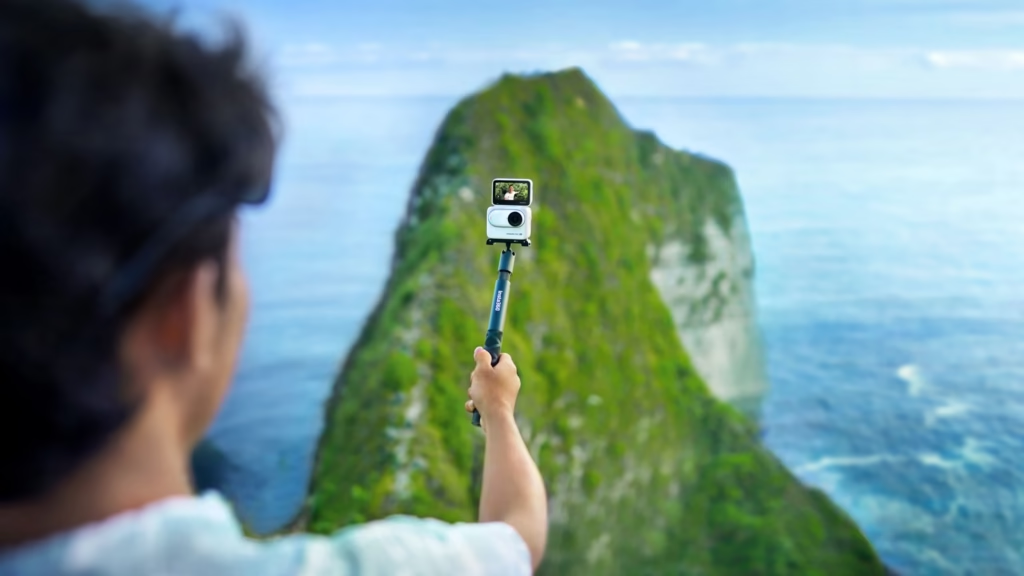
Use Apple Find My to locate your Insta360 GO 3S
Once the Insta360 GO 3S is registered in the Find My app, you can use it to track your camera’s location at any time. Here’s how it works:
- Opening the Find My App : To locate the camera, open the Find My app on your iPhone, iPad, or even a Mac signed in to your Apple ID.
- Select the Insta360 GO 3S : Under your device list, find the Insta360 GO 3S . The app will show you the camera’s current location on a map.
- Ring the Camera : If you’re close to the camera’s location but can’t find it visually, you can also ring it through the Find My app. This is especially useful if the camera is wedged under something or hidden in a corner that’s hard to see.
- Navigate to Location : If the camera is far from you, the Find My app will give you directions to navigate to its current location, which is very useful if you left it in a public place or during an adventure.
Tips for Maximizing the Use of the Find My Feature
- Ensure an Active Bluetooth Connection : The Find My feature works with Bluetooth, so make sure the camera is connected to your phone when enabling the feature. Also, keep in mind that Bluetooth range is limited, so the camera must be within range to be accurately located.
- Check the Battery : To be able to locate the camera, it must have enough battery to emit a signal. Make sure to charge it regularly, especially before leaving for a long capture session.
- Outdoor Use : If you’re in an area with limited GPS coverage, your location may be less accurate. However, the Find My app will always provide you with a last known location, which can be a useful starting point.
Ideal Scenarios for Using Find My with the Insta360 GO 3S
Compatibility with Apple Find My is ideal for several specific scenarios:
- Outdoor Activities : When using the camera outdoors, whether hiking or camping, it can be easy to set the camera down and forget about it. Find My makes it easy to retrace your steps.
- Hands-Free Captures : During a hands-free POV shot, it’s easy to forget where you put the camera. Using Find My can save you time searching through a cluttered space.
- Travel and Transportation : When traveling, especially in airports or train stations, it’s easy to misplace small items. With Find My, you can quickly check if you’ve left your camera behind.
Conclusion
Apple Find My compatibility makes using the Insta360 GO 3S even more enjoyable and secure. With such a small and versatile camera, it’s crucial to never lose sight of your gear, and integration with Find My gives you just that. Whether you’re an adventurer, a content creator, or simply someone who wants to capture memories stress-free, this feature gives you added peace of mind. Activate Find My today and capture your moments without any worries of loss.