

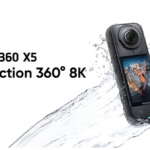
Have you ever thought that it would be great to use your X5 as a webcam for your live streams, meetings or online training? Well, good news: it can, and it’s even rather simple with OBS. Whether it’s to do an immersive live on YouTube, stream an event or just impress your colleagues on Zoom, we’ll see together how to make it all work.

Insta360 X5 Webcam: What You Need to Get Started
Before plugging anything in, do a quick check:
- ✅ An Insta360 X5 with the latest firmware installed
- ✅ A good quality USB-C cable (not just a basic charging cable)
- ✅ Your computer with OBS Studio installed (free and available on Windows/Mac)
- ✅ And that’s it! No need for an external converter or capture card

Enable Webcam Mode on the X5
- Connect your X5 to your PC via the USB-C cable.
- Turn on the camera, you will see a menu appear with the choice of USB mode.
- Select “Webcam”.
- You will then have the choice between:
- 360° mode : to broadcast a complete and immersive view
- Reframe —For a standard view, like a regular webcam
Personally, the Reframe mode is super practical for stylish video, and the 360° is perfect for events or interactive content.
Set up OBS to capture the X5
- Open OBS
- In your scene, click on the + to add a new source
- Choose “Video Capture Device”
- Select “Insta360 Virtual Camera” (or similar name depending on your system)
- Adjust the resolution (you can go up to 4K depending on your machine and connection)
- And there you go, you should see the image of your X5 displayed in OBS 🎉
You can then resize, add overlays, text, sound, in short… everything that OBS allows you to do.
Live stream with OBS
Once your image is in place:
- Go to OBS > Flux settings
- Choose your platform (YouTube, Twitch, Facebook…)
- Enter your stream key (you can find it in your platform account)
- Click on Start Streaming
And there you go, you’re live with a 360° camera that packs a punch 🔥
Some practical tips
- 💻 Think about the external power supply if you plan a long live
- 🌡️ Be careful with heating, especially in 360° mode: the Cooling Screen Protector can be useful
- 📶 Check your internet connection, as the X5’s video stream can be heavy in 4K
- 🎙️ The built-in mic works, but if you want clean sound, consider an external mic via OBS
Conclusion
Frankly, using your Insta360 X5 as a webcam is a great way to make your camera profitable and offer more professional, more immersive and downright more stylish content than any standard webcam.
So whether you’re a streamer, trainer, musician or just a tech enthusiast, don’t hesitate to test. And if you have any questions about the settings or the OBS scenes, I’m here to help 😉 you
❓ FAQ: Using the Insta360 X5 as a webcam
Can you use the Insta360 X5 as a webcam?
Yes, the X5 can be used as a webcam via a USB-C cable, without a capture card. It offers two modes: immersive 360° or Reframe (classic cropped view).
What equipment is needed?
All you need is :
- An Insta360 X5 with up-to-date firmware
- A good quality USB-C cable
- A computer with OBS Studio installed (Windows or Mac)
How do I enable Webcam mode on the X5?
Connect your X5 to the computer via USB-C. Select “Webcam” from the menu that appears. Then choose between 360° mode or Reframe mode.
How do I set up OBS with the X5?
In OBS:
- Adds a new “Video Capture Device” source
- Choose “Insta360 Virtual Camera”
- Adjusts resolution (up to 4K)
- Start your live or record your scene
Can you go live on YouTube or Twitch with the X5?
Yes, you can stream live by connecting OBS to YouTube, Twitch, Facebook Live, etc., by simply entering your stream key.
What are some tips to avoid cuts or problems?
- Plug the X5 into the mains for long sessions
- Uses a Cooling Screen Protector to limit overheating
- Prefer a good internet connection



Leave a Reply