
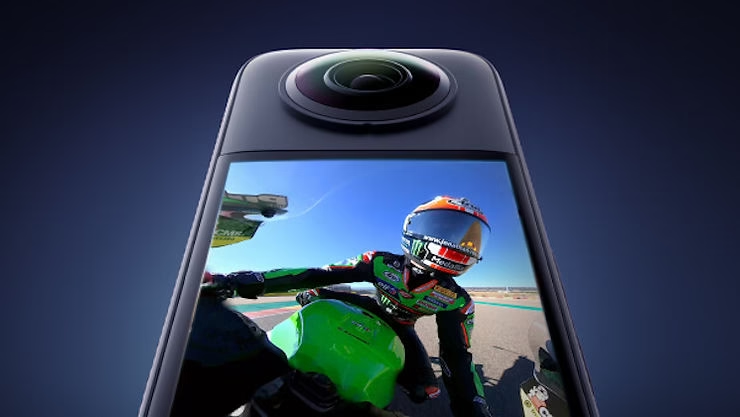
Discover a new level of versatility with the Insta360 X3 , a camera that transcends the traditional boundaries of adventure photography and videography. Designed to capture the beauty of the world around us with stunning clarity and 360-degree angles, the Insta360 X3 isn’t just your ideal companion for outdoor expeditions. It also proves to be an exceptional tool for enhancing your online interactions.
In a world where digital communication has become indispensable, using the Insta360 X3 as a webcam offers significant added value. Imagine crystal-clear video calls, online meetings where every participant is clearly visible, and streaming sessions where every detail matters. The Insta360 X3 pushes the boundaries of what a webcam can be, transforming every virtual interaction into an immersive visual experience.
Join us as we explore how the Insta360 X3 not only revolutionizes the capture of your adventures but also enriches your digital presence, taking the quality of your online communications to a whole new level.
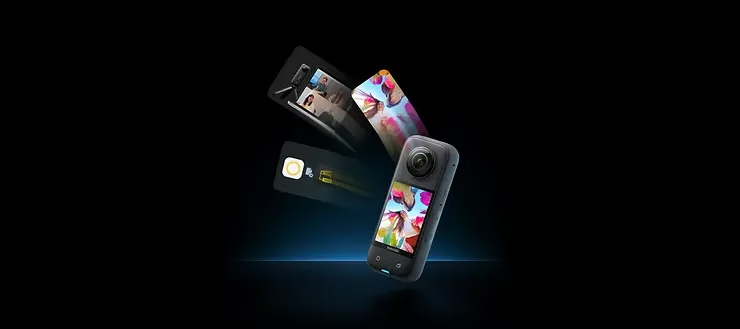
Why use the Insta360 X3 as a webcam?
The Insta360 X3 isn’t just a revolutionary action camera designed to capture your outdoor adventures with stunning clarity and in innovative formats. It’s also a marvel of technological versatility, capable of transforming any space into a professional meeting or streaming studio with its webcam function. So why consider the Insta360 X3 as a premium webcam alternative for your virtual meetings, video calls, and streaming sessions?
Superior Image Quality
The primary reason is undoubtedly image quality. The Insta360 X3 offers significantly higher resolution than most laptop webcams or common streaming cameras. Whether for an online press conference, a virtual classroom, or a live stream on your favorite platforms, the Insta360 X3 ‘s exceptional image quality ensures you’ll look your best, with unparalleled sharpness and clarity.
Image Stability
Another major advantage of using the Insta360 X3 as a webcam is its image stabilization capabilities. Thanks to its advanced stabilization technology, vibrations and sudden movements are effectively eliminated, ensuring your image remains stable and professional, even when you’re moving or your setup isn’t perfectly steady.
Wide Viewing Angle
The Insta360 X3 ‘s wide field of view is an undeniable asset for group meetings or streams that require capturing a larger area. Unlike built-in webcams, which often have a limited field of view, the Insta360 X3 allows you to encompass a broader panorama of your space, making virtual interactions more dynamic and inclusive.
Comparison with Built-in Webcams
In comparison, built-in webcams and other common streaming cameras can often seem limited. Whether in terms of resolution, stabilization capabilities, or viewing angle, the Insta360 X3 easily surpasses these traditional options. It not only brings a noticeable qualitative improvement to your virtual interactions but also greater flexibility in how you can present your environment and yourself online.
Ultimately, choosing the Insta360 X3 as your webcam is an investment in quality and versatility. It elevates the online communication experience to a higher level, allowing you to benefit from image quality, stability, and a field of view that were previously the preserve of professional productions.
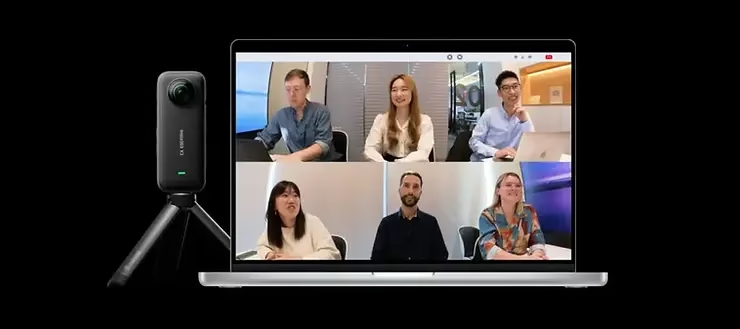
Setting Up Your Insta360 X3 in Webcam Mode: A Practical Guide for Windows and Mac
Turning your Insta360 X3 into a powerful webcam for virtual meetings, streaming, or video calls on Windows and Mac is easier than you think. Here’s a step-by-step guide to help you set up your Insta360 X3 as a webcam, along with tips for optimizing its positioning.
Required Equipment
- Insta360 X3
- USB-C cable (supplied with the Insta360 X3 )
- Computer running Windows or Mac
Software Configuration
- Firmware Update : Make sure your Insta360 X3 is up to date with the latest firmware available on the official Insta360 website.
- Connecting to the Computer : Connect the Insta360 X3 to your computer using the USB-C cable.
- Webcam Mode Selection : Once connected, the Insta360 X3 will offer several connection modes. Select “Webcam Mode” on the camera screen.
- Driver Installation (if necessary): On Windows, you may need to install additional drivers available on the Insta360 website. Mac users can usually skip this step.
- Application Setup : Open your meeting or streaming application (Zoom, Skype, OBS, etc.) and select the Insta360 X3 as the video source in the application settings.
Positioning Advice
- Height : Position your Insta360 X3 at eye level for a more natural and engaging perspective. Use books, boxes, or an adjustable tripod to adjust the height if needed.
- Viewing Angle : Thanks to its wide field of view, the Insta360 X3 captures more of your surroundings. Angle the camera to include the elements you want to show in the background, while avoiding visual distractions.
- Distance : An arm’s length is generally ideal. This helps maintain a sharp image and fully utilize the camera’s wide angle.
- Lighting : Ensure your face is well lit, avoiding backlighting. Frontal lighting is preferable to minimize shadows and improve image quality.
By following these instructions and tips, you will be able to take full advantage of the Insta360 X3 ‘s capabilities as a webcam, providing superior image quality and unparalleled flexibility for your online interactions on Windows or Mac.
Optimize Your Webcam Experience with the Insta360 X3
Using the Insta360 X3 as a webcam opens up a world of possibilities for improving the quality of your online interactions. Here are some tips to optimize both image and sound quality, as well as accessory suggestions to enhance your experience.
Tips for Improved Image and Sound Quality
- Optimized Lighting : Good lighting is essential for a quality image. Opt for soft front lighting to eliminate shadows on the face. Adjustable LED lights or ring lights are excellent choices for consistent and flattering lighting.
- Background Selection : The background of your video can add depth to your presentation or distract your audience. Choose a simple background or use a green screen with the Insta360 X3 to incorporate custom virtual backgrounds.
- Sound Quality : While the Insta360 X3 captures good sound quality, using an external microphone can significantly improve audio clarity, especially if you’re far from the camera. Opt for a lavalier or condenser microphone for crystal-clear sound.
Insta360 Accessories to Enhance the Experience
- External Microphones : Complete your setup with an Insta360 external microphone for superior audio quality, essential for conferences or streams.
- Adjustable Supports : A tripod or articulated arm allows you to easily adjust the height and angle of your Insta360 X3 , providing the flexibility needed to find the perfect framing.
Creative Uses of the Insta360 X3 in Webcam Mode
The versatility of the Insta360 X3 is not limited to image or sound quality; it also extends to creative uses that can transform your online interactions.
For Teaching and Content Creation
- Online Teaching : Use the Insta360 X3 to create interactive lessons, taking advantage of its wide field of view to capture both the teacher and the teaching material without changing cameras.
- Interactive Content Creation : 360-degree capture allows for the creation of videos where viewers can choose their own viewpoint, offering a unique immersive experience for tutorials, product demonstrations, or storytelling.
For Streaming
- Game Streaming : Thanks to its subject tracking and pan modes, the Insta360 X3 can offer a dynamic game streaming experience, capturing both the game and the player’s reactions in a single wide frame.
- Webinars and Workshops : Transform your webinars into more engaging experiences by using the unique features of the Insta360 X3 , such as topic tracking to keep the speaker in the center of attention, even on the move.
The Insta360 X3 isn’t just a camera; it’s an extension of your creativity and your ability to communicate and share with the world. By fully utilizing its webcam features, you can not only enhance the quality of your online interactions but also push the boundaries of what’s possible in terms of content creation and virtual teaching.
Take your meetings and streams to the next level with the Insta360 X3 in Webcam Mode
Exploring the Insta360 X3 as a webcam opens up a world of opportunities to enrich your online meetings, streaming sessions, and much more. It’s not just about improving visual and audio quality; it’s also a way to inject a dose of creativity and innovation into every virtual interaction.
The advantages of using the Insta360 X3 in webcam mode are clear: exceptional image quality, impeccable stabilization, and a wide field of view that together radically transform the online communication experience. Beyond these technical aspects, the innovative features of the Insta360 X3 enable a multitude of creative uses, from interactive teaching to streaming dynamic content.
We invite you to dive into the world of possibilities offered by the Insta360 X3 and share your discoveries and tips with the Insta360 community. Your experiences and tricks for using the Insta360 X3 in various webcam scenarios can inspire and guide other users to explore new ways to use this versatile camera.
Join us on this adventure of discovery and innovation. Together, we can push the boundaries of creativity and transform how we connect and share in the digital world. Your Insta360 X3 is more than just a camera; it’s a gateway to a future of endless possibilities. Share your experiences, explore without limits, and most importantly, have fun along the way.




Leave a Reply