
Tired of transferring your files to a computer just to add dynamic captions to your clips? This tutorial shows you exactly how to process your Submagic videos on iPhone or Android to run the AI directly from your smartphone. Discover how this simple change in habits can save you hours of editing and allow you to publish your creations much faster.
- Does Submagic work on mobile or not?
- The practical guide to using Submagic on iPhone and Android
- Why Submagic on mobile and not another app?
Does Submagic work on mobile or not?
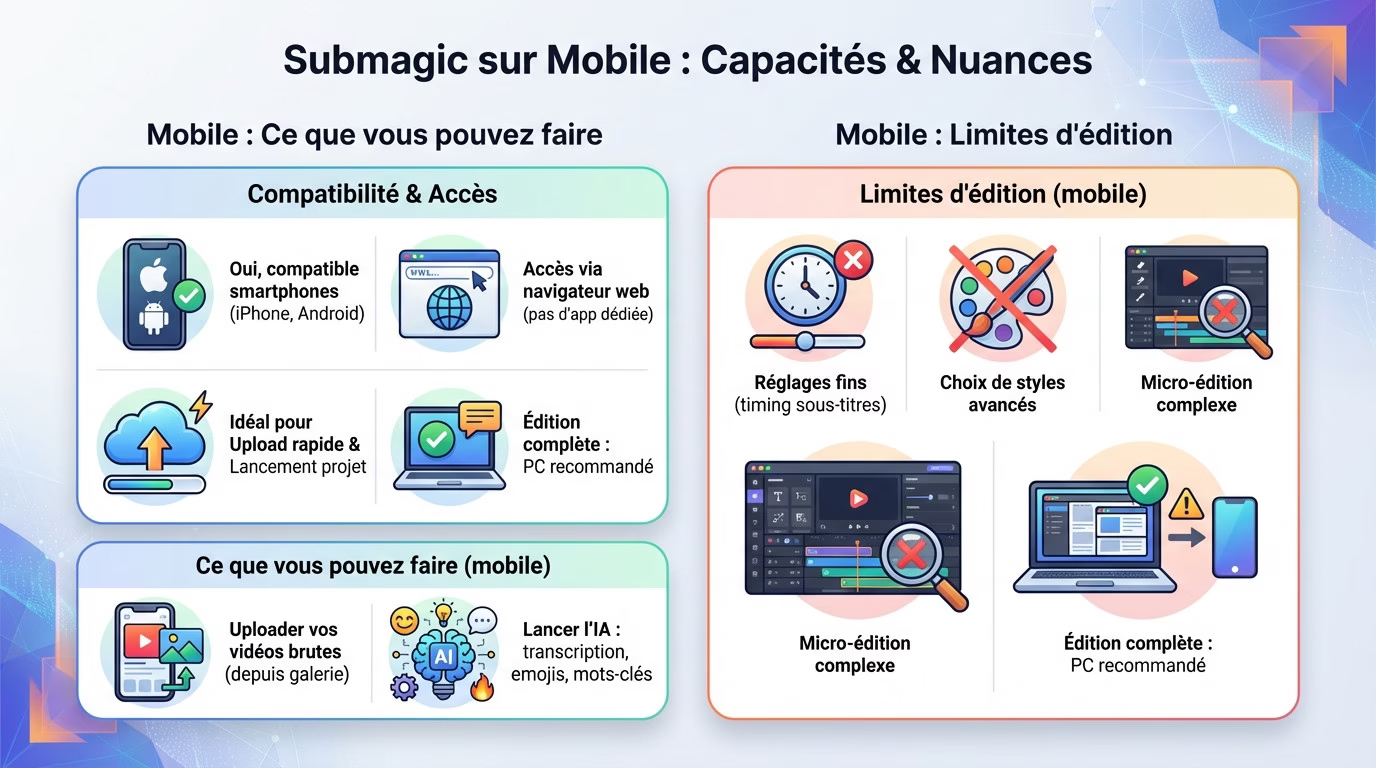
The clear answer: yes, but with a nuance
Good news for creators on the go. The tool handles files from your smartphone perfectly, and Submagic works with videos filmed on iPhones or Android devices without any technical limitations. This is, in fact, the logical starting point for most current users.
But be aware, don’t look for an icon on your home screen. There’s no app to download from the official app stores. You absolutely must use Safari or Chrome to access your account.
This is where the distinction is important. While sending your files is smooth on a small screen, the full editing interface is designed for a computer. Mobile is fine for uploading, but limits the user experience.
What you can (and can’t) do from your smartphone
Your phone is the ideal tool for the first step: importing. You can send your raw footage directly from your photo gallery to the platform. It’s fast, intuitive, and avoids unnecessary file transfers.
Once the video is online, the magic happens. You can launch automatic transcription, emoji generation, and AI analysis with a simple tap of your finger. The smartphone acts as an efficient remote control.
However, when it comes to fine-tuning, things get complicated. Adjusting a subtitle or modifying a specific animation is far too laborious on a touchscreen. To see what the tool is truly capable of, check out our full review of Submagic conducted on a computer.
The practical guide to using Submagic on iPhone and Android
From capture to upload: the step-by-step workflow
Simply launch your smartphone’s camera app and film your sequence. That’s the basic way to create submagic videos on iPhone and Android without any hassle.
Next, open your web browser, go to the Submagic website and log in to your account.
To import, tap the create button. Your gallery will open, you select your clip, and the upload will begin. It’s as simple as posting a story.
- Film your video with your phone.
- Open your web browser.
- Go to the Submagic website and log in.
- Press “Create” and select your video.
- Choose the language and let the AI do the work.
The minor differences between iOS and Android
Rest assured, the experience is identical on both systems. Submagic runs through the browser, so it doesn’t depend on the OS, which simplifies everything.
The only difference is visual when selecting the file between iOS and Android. But the result is the same: your video is successfully sent.
In short, the workflow remains unchanged regardless of your mobile device.
| Functionality | iPhone (via browser) | Android (via browser) |
|---|---|---|
| Access to the tool | Browser (Safari, Chrome) | Browser (Chrome, etc.) |
| Video upload | Photo Library or Files | Gallery or Files |
| File compatibility | .MP4, .MOV | .MP4, .MOV |
| Overall experience | Identical (Web) | Identical (Web) |
Why Submagic on mobile and not another app?
Okay, it works. But with all the free apps available, why bother with a website on your phone?
The secret: the power of AI that saves you time
Let’s be honest, native apps like CapCut or iMovie are excellent for pure editing. If you have two hours to manually time each cut, go for it, they get the job done.
But here, the game changes. The tool isn’t for traditional video editing, but for automating tedious tasks using AI. The goal is speed and efficiency for faster publishing.
AI handles dynamic subtitles, emojis, and keyword highlighting effortlessly. These automations are one of the main reasons to adopt Submagic to simplify your editing.
In short: the verdict for nomadic creators
Using Submagic for iPhone and Android videos via the browser is a powerful trick. It’s the perfect tool to launch AI analysis as soon as the video is recorded, without wasting a minute.
The ideal workflow is crystal clear: film on mobile, upload to the browser, then refine on computer if needed.
This is a habit you should develop to increase your productivity without waiting until you get to the office. Here’s why you should start doing it:
- Save time by starting the processing immediately after filming.
- Avoid transferring large files to a computer.
- Leveraging AI for repetitive tasks.
To see exactly how it can transform your workflow, the best thing to do is try it out. Try Submagic here .
Using Submagic on your smartphone is a winning strategy to speed up your content creation. While a computer remains the best tool for final touches, your mobile device lets you launch the AI as soon as filming wraps. You save precious time without having to wait until you get home. It’s your turn!








Leave a Reply