
Tired of wasting hours manually editing long videos for social media? It’s time to learn how to use Opus Clip Shorts, the tool that automatically cuts and subtitles your content using artificial intelligence. We’ll see together how to generate dozens of viral clips in just a few clicks to effortlessly boost your visibility.
Do you have hours of video content sitting unused on a hard drive or YouTube channel? You’re missing out on a massive opportunity. Today, short-form content dominates attention, and not leveraging your longer videos to extract clips is literally leaving an audience on the table. That’s where artificial intelligence comes in to do the heavy lifting for you.
In short: creating shorts with Opus Clip
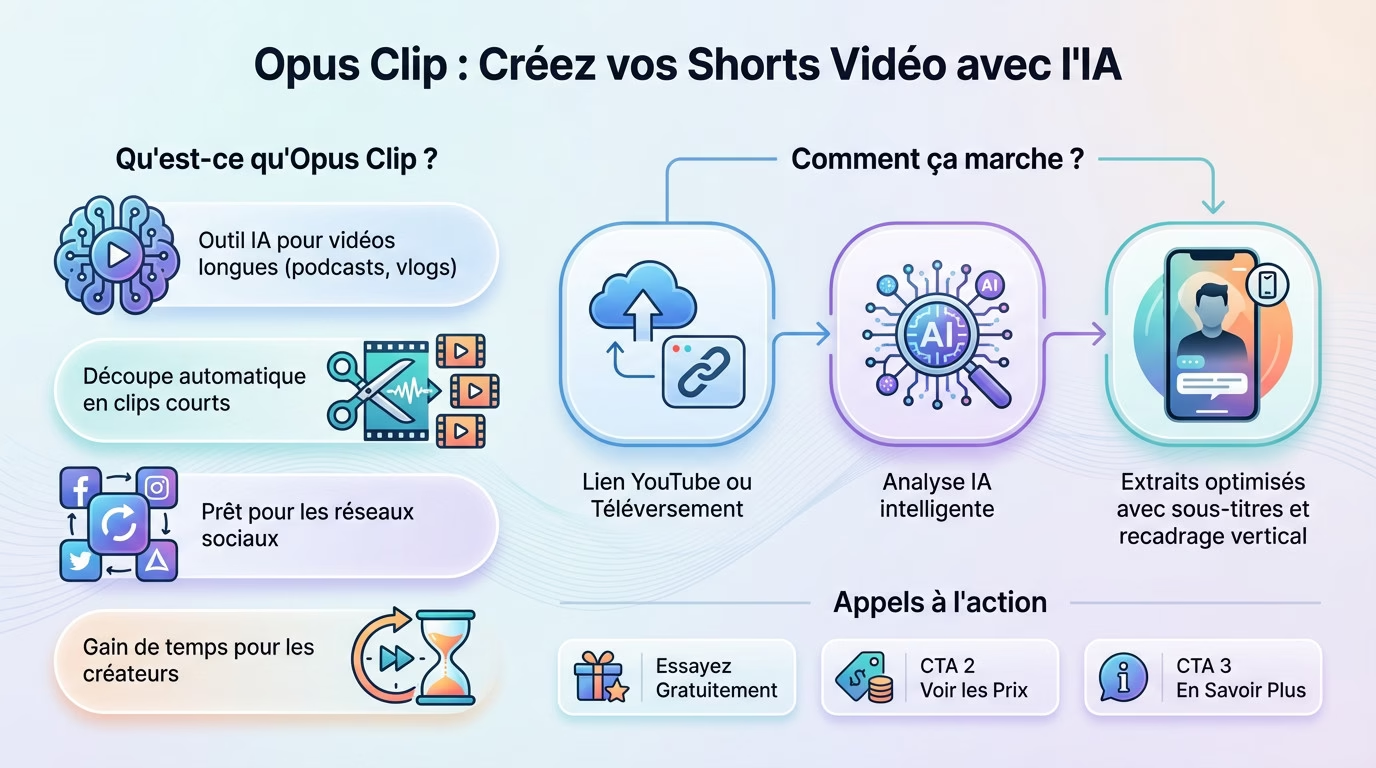
Opus Clip is an AI tool that takes a long video (podcast, vlog) and automatically cuts it into several short clips, ready for social media. This represents a considerable time saving for content creators.
The basic process is simple: you provide a YouTube link or upload a video, then the AI analyzes everything and suggests excerpts with subtitles and vertical cropping.
To judge its effectiveness for yourself, you can try the tool for free , see the prices or simply learn more about Opus Clip .
Importing your source video
The first step is the simplest, but it’s fundamental. To start using Opus Clip Shorts, you need to feed the system. The tool is quite flexible and doesn’t require any complex technical manipulations.
You have two main options:
- Direct link: Simply copy the URL of your video from platforms like YouTube, Zoom, Vimeo, or Twitch. This is ideal for repurposing content that’s already online.
- The raw file: If your video is not yet published, drag and drop your file (MP4, MOV, etc.) directly into the interface.
Once the source is connected, the tool gets to work. There’s no need to pre-cut or prepare the file; the algorithm is designed to handle long formats, such as hour-long interviews or complete podcasts.
Intelligent analysis and Co-Pilot
This is where the magic happens. Unlike manual editing where you have to watch every minute, the “ClipAnything” function scans your entire content. It identifies changes of subject, emotional peaks, and impactful phrases.
But don’t let the AI decide everything on its own. Use the “Co-Pilot” feature. It’s a bit like giving instructions to a human assistant. You can:
- Target specific keywords.
- Ask them to focus on a specific period.
- Specify the type of segments you are looking for.
This step helps refine the results and avoid out-of-context excerpts. In just a few minutes, you get a list of potential clips, sorted by relevance.
Automatic editing, cropping, and B-roll
Once generated, the clips are raw. To perform well on TikTok or Instagram Reels, they need to be dynamic. The tool offers several automatic features to transform a horizontal clip into engaging vertical content.
Intelligent reframing (AI Reframe):
The AI detects the main subject (the speaker) and keeps the frame centered on them, even if they move. If you’re not satisfied with the result, you can always adjust the frame manually or select other areas of interest.
Animated Legends:
It’s essential today. The tool generates subtitles with 97% accuracy. You can change the font, color, and style to match your brand. Keywords are often automatically highlighted to grab attention.
The addition of B-Roll:
To avoid the visual boredom of a talking head, the AI B-Roll option automatically inserts relevant illustrative images. The AI analyzes what is being said and finds corresponding visuals to pace the video. This is done in less than a minute and significantly increases viewer retention.
Understanding the Virality Score
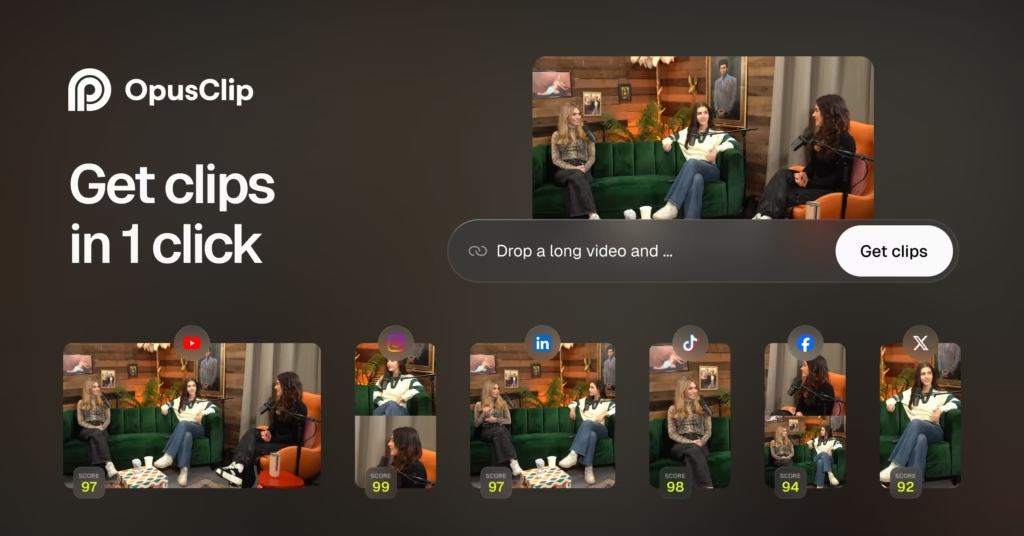
How do you know which video will go viral? Rather than guessing, take a look at the “AI Virality Score.” Each generated video receives a score from 75 to 99. This isn’t a random number; it’s a prediction based on the analysis of thousands of viral videos.
Here’s how to interpret this score:
- 95-99: These are the cream of the crop. These clips have a strong hook, a trending topic, and a good narrative structure. They should be published first.
- 80-94: Very good candidates who deserve to be shared.
- 75-79: Decent clips, but they might need a little manual editing to become really impactful.
AI evaluates four criteria: topic trendiness, hook quality, emotional engagement, and shareability potential. Use this data to prioritize your publishing schedule.
Multichannel planning and distribution
You have your clips, they’re subtitled and cropped. Now you need to show them to the world. Don’t waste time downloading each file and re-importing it to your phone.
Use the built-in scheduler. You can connect your YouTube, Instagram, TikTok, LinkedIn, and X (Twitter) accounts. The tool lets you schedule up to a month’s worth of content in a single ten-minute session.
The advantage? You centralize everything. You choose the date and time, and the tool handles the publishing. For creators juggling multiple platforms, this translates into an immediate productivity boost. You move seamlessly from production to distribution, ensuring a consistent presence on social media, which is key to organic growth.
Getting started with Opus Clip: importing your video
Provide your video to the tool
To begin, you need to feed the machine with your raw content. You have two options: simply paste a link from YouTube, Vimeo or Google Drive, or drag and drop your video file directly from your hard drive.
The system’s strength lies in its flexible input process. Whether it’s a Zoom recording, a Twitch live stream, or a Loom session, almost anything goes. This is the foundation for using Opus Clip Shorts and transforming any footage into usable content.
Vlogs, interviews or podcasts, the tool digests all types of video content without any fuss.
Start the analysis with the co-pilot
Don’t just blindly click “Start.” With the Co-Pilot feature, you guide the AI by specifying time ranges or keywords to identify. This is the trick many people overlook to avoid generic results.
Let’s take a concrete example to illustrate the maneuver. If your video is about “FPV drone,” include that term to force the algorithm to search for those exact sequences. The sorting immediately becomes more precise.
Once you have given your orders, validate the analysis. Artificial intelligence then takes over to carry out the main work.
The magic of AI: generating and sorting your first clips
Once the video is uploaded, the real work of Opus Clip begins. Let’s see how the tool selects and rates the clips for you.
Interpreting the virality score
Each video clip receives a specific rating called the “AI Virality Score.” This number isn’t just for show. It’s a concrete prediction of its potential to go viral on social media.
Please note that this score is not a guarantee of success, but a powerful indicator. It helps you intelligently prioritize the sequences you need to work on. A high score often signals a compelling hook or a trending topic identified by the AI.
This is an invaluable guide to avoid getting overwhelmed. Aim for the best scores right away.
Select the generated nuggets
Artificial intelligence makes suggestions, but the final decision is yours. Be sure to watch the suggested clips, especially the highest-rated ones.
Context is king, and the algorithm sometimes overlooks your nuances. Only you truly know your target audience. That’s the key to using Opus Clip Shorts effectively and delivering the right message.
Select a handful of clips that tell a micro-story or provide immediate value. Quality trumps quantity, so keep only the best, even if the tool produces tons of them.
Refining your shorts for a professional look
Adjust the framing and subtitles
To use Opus Clip Shorts effectively, let the tool do the work for you first. The “AI Reframe” function automatically converts your video to a 9:16 vertical format. It tracks the main subject so it stays perfectly centered in the frame. This is a truly phenomenal time-saver.
However, AI isn’t always perfect on the first try. If the automatic framing isn’t to your liking, click “Crop” to easily take control. You can then readjust the visible area as you wish.
Animated captions are also automatically added to the video. Spot a typo? Edit the text via the transcript.
Applying your brand identity
Don’t let your videos look like everyone else’s. With “Brand Templates,” you can save your unique logo, fonts, and colors. It’s your own visual signature.
This option ensures immediate visual consistency across all produced shorts. It’s this small technical detail that makes them look so professional.
Once your template is created, apply it to any clip with a single click. No more repetitive and tedious steps to add your logo. You’ll save a ton of time later on.
From export to publication: the final steps to break through
The video is perfect, exactly as you envisioned it. All that’s left is to export it from Opus Clip and deliver it to your audience.
Export your finished video clip
Click the export button and always choose high definition (1080p). This is the essential standard for capturing attention on mobile and ensuring your credibility against the competition.
Advanced users will appreciate the XML export option. This is ideal for finalizing precise edits in editing software like Premiere Pro.
Don’t forget the built-in social media planner. It allows you to schedule posts directly to your social networks without any unnecessary steps.
Maximize your reach on YouTube Shorts
Once the file is on YouTube, the title is crucial. It must be impactful and very short. This detail will make the difference between a click and an indifferent scroll.
To use Opus Clip Shorts effectively and go viral, focus on hashtags. Always include #shorts and two or three targeted keywords. Don’t overdo it; relevance is key for the algorithm.
Finally, set the audience and category in the settings. This metadata tells YouTube exactly who to show your new creation to.
Opus Clip is the perfect tool to effortlessly transform your long videos into dynamic shorts. Thanks to AI, you save valuable time on editing and subtitling. All you have to do is import your content, let the tool do its work, and publish your creations to boost your visibility on social media.


Leave a Reply