
Do you dream of creating stunning videos with your iPhone 15 Pro , but don’t know where to start? Look no further! In this article, we’ll guide you through the best tips and equipment to transform your smartphone into a true professional camera. Whether you’re a passionate content creator or simply someone who wants to capture precious moments with exceptional quality, this article is for you.
Imagine capturing every detail, every color, and every movement with incredible clarity, all while maintaining the fluidity and stability of your shots. Thanks to the Insta360 Flow , the SmallRig Universal Magnetic Filter Adapter Ring (52mm) , and SmallRig ND filters , you can unlock the full potential of your iPhone 15 Pro and create videos worthy of the greatest directors. Get ready to discover how these accessories can revolutionize your videography experience and allow you to capture memorable moments with unparalleled quality.
Making Beautiful Videos with the iPhone: Essential Preparation and Equipment
The iPhone 15 Pro : Pocket-Sized Power
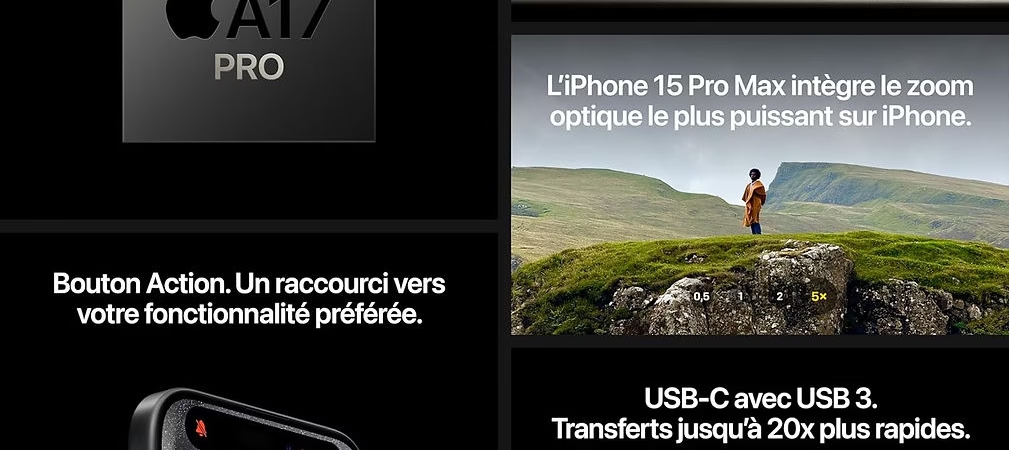
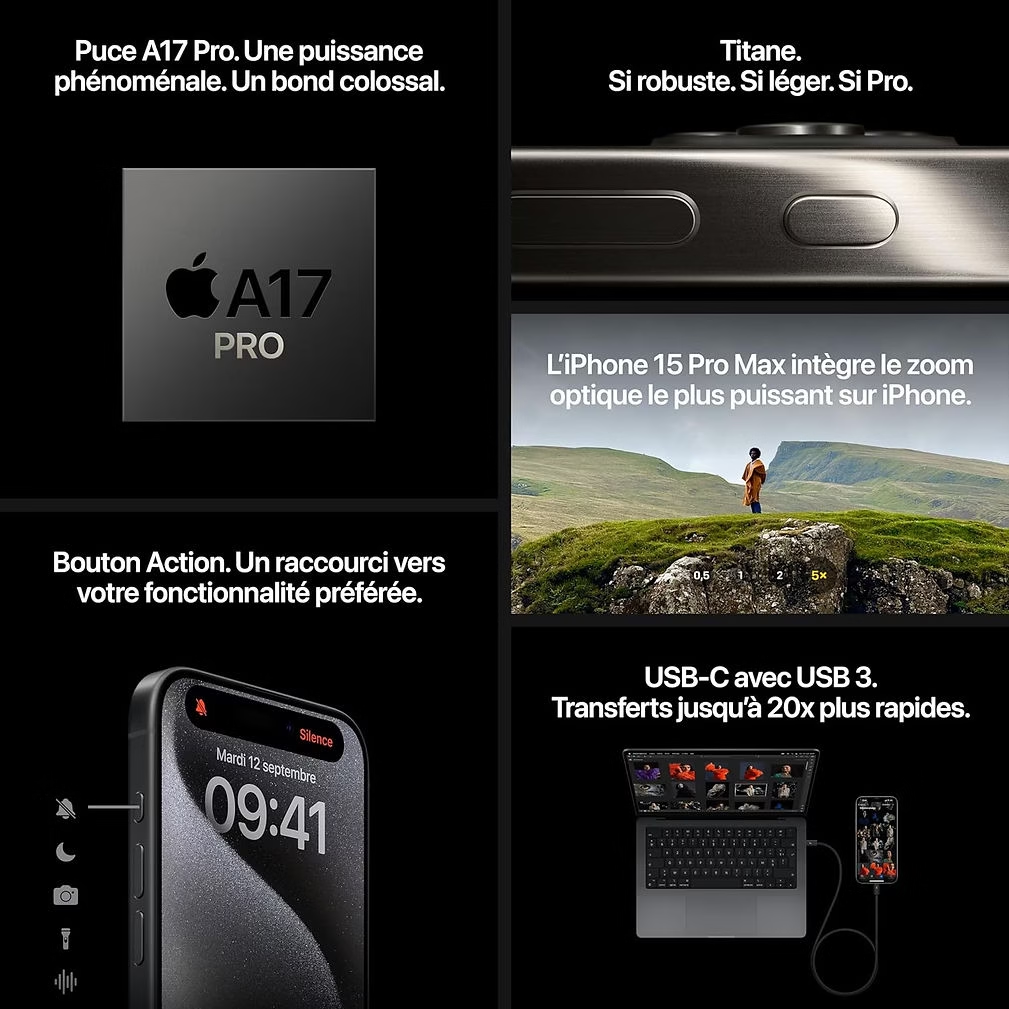
The iPhone 15 Pro is a true technological marvel, offering impressive video capabilities. With its advanced sensor, it can capture 4K video at 60 frames per second, delivering exceptional image quality. Furthermore, its optical image stabilization system ensures sharp and smooth footage, even when you’re on the move. To fully enjoy its capabilities, you can purchase the iPhone 15 Pro here .
The Insta360 Flow Gimbal: Perfect Stability
The Insta360 Flow is the essential accessory for ensuring stable, professional-looking videos. This gimbal uses advanced stabilization technology to eliminate shakes and jitters, allowing you to capture smooth, cinematic footage. Easy to use and portable, it’s perfect for all content creators. You can buy the Insta360 Flow here .
SmallRig ND Filters and the Universal Magnetic Adapter
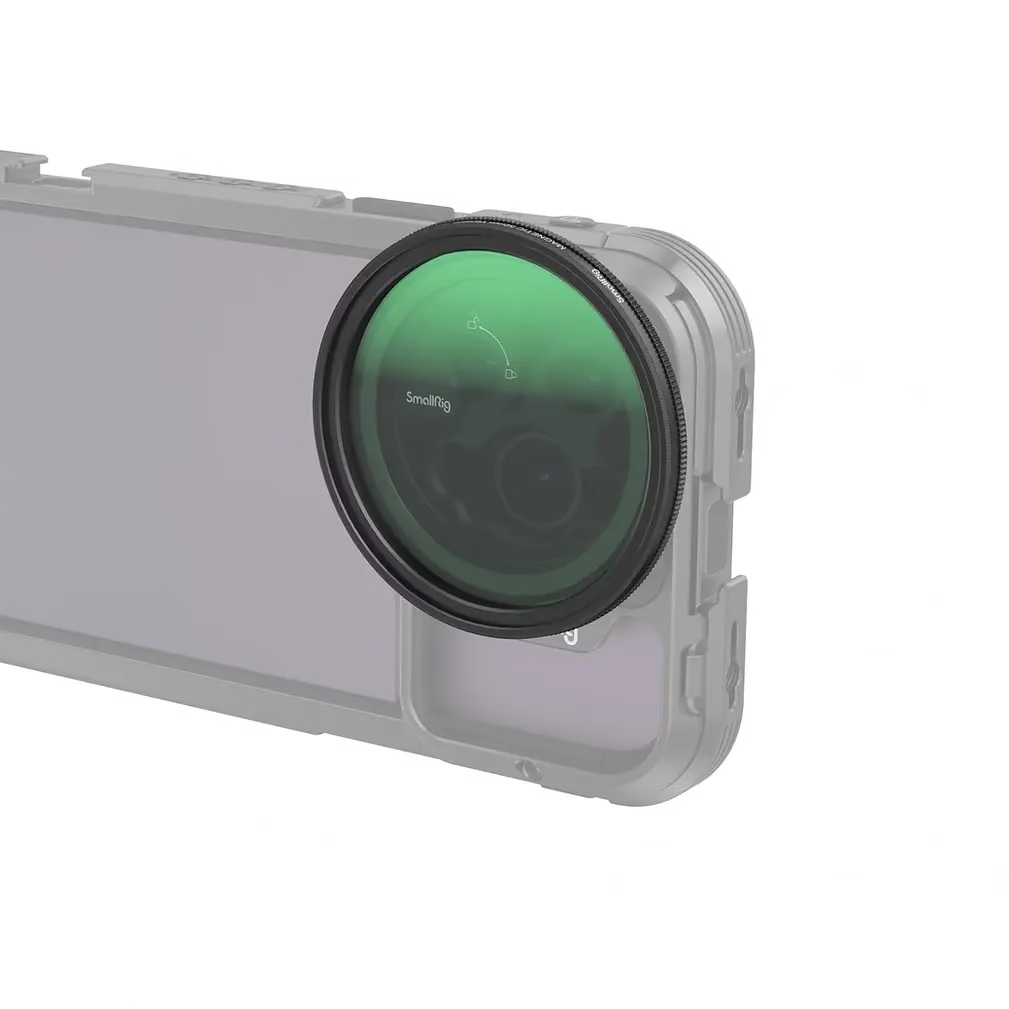
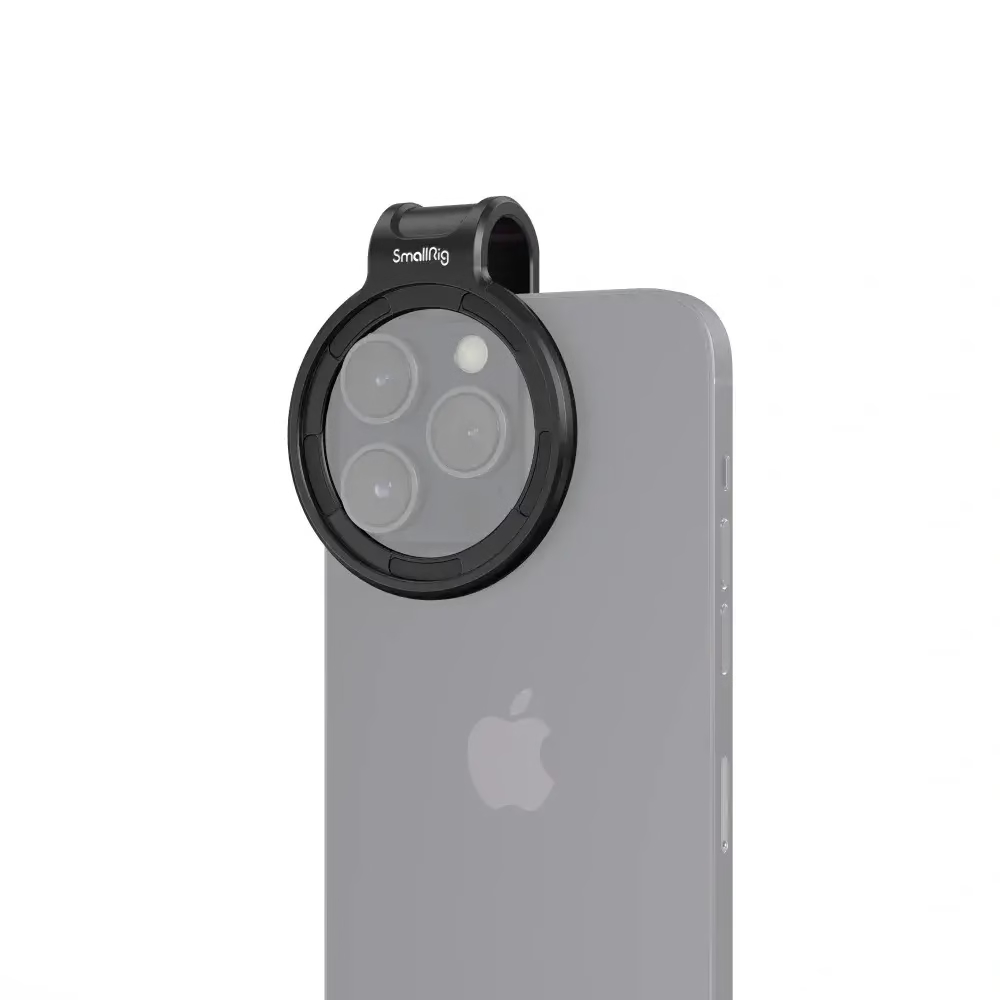
ND filters are essential for exposure control, especially in bright light. They reduce the amount of light entering the lens, preventing overexposure and creating cinematic bokeh. The SmallRig Universal Magnetic Filter Adapter Ring (52mm) is an excellent choice for easily attaching ND filters to your iPhone 15 Pro . This magnetic adapter ensures a quick and secure installation. You can purchase the universal magnetic adapter here . As for SmallRig ND filters , they are perfect for adjusting light and achieving high-quality videos. You can purchase SmallRig ND filters here .
Making Beautiful Videos with the iPhone 15 Pro : Filming Techniques
Choosing the Right Frame
To create professional-looking videos with your iPhone 15 Pro , proper framing is essential. Use the rule of thirds to position your subjects in a balanced and aesthetically pleasing way. Imagine your screen divided into nine equal sections by two horizontal and two vertical lines. Place the key elements of your scene along these lines or at their intersections to create a dynamic and harmonious composition. Don’t forget to use depth of field to add dimension to your videos, playing with different planes to guide the viewer’s eye.
Stabilization with the Insta360 Flow
The Insta360 Flow is your ally for shake-free videos. This high-performance gimbal offers exceptional stabilization, even when moving. To use it effectively, follow this quick tutorial:
- Mounting : Attach your iPhone 15 Pro to the gimbal and make sure it is properly balanced.
- Shooting Modes : Explore the different modes of the Insta360 Flow such as Follow mode, which follows your movements for smooth shots, or Pan Follow mode, which keeps the horizon stable while following your pans.
- Scenes : Use the gimbal for scenes where stabilization is crucial, such as walking shots, tracking moving subjects, or slow panning to capture landscapes.
Using SmallRig ND Filters for Perfect Exposure
SmallRig ND filters are essential for controlling the exposure of your videos. They reduce the amount of light entering the lens, which is especially useful in bright daylight or other high-light conditions. Here’s how to use them:
- When to Use Them : Use ND filters outdoors, under bright light, to avoid overexposure and achieve a cinematic motion blur.
- Installation : Attach the SmallRig Universal Magnetic Filter Adapter Ring (52mm) to your iPhone 15 Pro and easily attach magnetic ND filters.
- Video Comparison : To understand the impact of ND filters, record videos with and without the filter. Note how ND filters preserve detail in bright areas and create an artistic blur on moving objects.
By following these filming techniques, you will maximize the capabilities of your iPhone 15 Pro and produce professional-quality videos.
Post-Production and Editing
Video Editing Apps for iPhone 15 Pro
Post-production is a crucial step in transforming your raw footage into stunning videos. Here’s a list of the best video editing apps available for your iPhone 15 Pro , suitable for both beginners and professionals.
- iMovie
- Description : iMovie is a free application developed by Apple, ideal for beginners. It offers an intuitive interface and robust basic features for video editing.
- Advantages : Simple to use, integration with other Apple products, pre-defined transitions and effects, ideal for quick edits.
- LumaFusion
- Description : LumaFusion is a professional video editing app available on iOS. It’s perfect for advanced users looking for sophisticated editing features.
- Advantages : Multi-track, professional effects, color correction options, 4K support, export to various formats.
- Adobe Premiere Rush
- Description : Adobe Premiere Rush is a streamlined version of Adobe Premiere Pro, designed for fast editing on mobile devices. It allows you to sync projects with Adobe Creative Cloud.
- Advantages : User-friendly interface, synchronization with Creative Cloud, advanced editing and color tools, easy export to social networks.
- InShot
- Description : InShot is a popular video editing app for social media content creators. It offers basic tools for editing and adding music, text, and stickers.
- Advantages : Simple interface, numerous tools for social networks, addition of music and effects, good value for money.
Improve Video Quality with Effects
To enhance your videos, it’s essential to add special effects and smooth transitions. Here’s a tutorial on using the advanced editing features available in the Insta360 Flow app.
- Adding Special Effects
- Step 1 : Import your video into the editing application of your choice.
- Step 2 : Select the section of the video where you want to add a special effect.
- Step 3 : Use the available special effects options, such as filters, color correction, and motion effects. For example, in LumaFusion, you can adjust color curves to enhance the visual appearance of your sequence.
- Fluid Transitions
- Step 1 : Cut your sequences in such a way as to create natural transition points.
- Step 2 : Choose a smooth transition such as “Fade”, “Slide” or “Dissolve” in the application.
- Step 3 : Apply the transition between two clips for a smooth transition.
- Using Insta360 Flow ‘s Advanced Features
- Step 1 : Open the Insta360 application and import your sequences.
- Step 2 : Use the “Shot Lab” mode to access creative templates and add dynamic effects such as “TimeShift” and “Barrel Roll”.
- Step 3 : Explore the advanced stabilization options to smooth your videos and correct shakes.
With these tools and techniques, you can transform your raw footage into cinematic masterpieces. Whether you’re a beginner or a professional, these apps and editing tips will allow you to maximize the potential of your iPhone 15 Pro and Insta360 Flow .
Tips for a Professional Result
Light and Colors
To achieve a professional video result with your iPhone 15 Pro , managing light and colors is crucial.
- Natural Light and Artificial Lighting
- Natural Light : Natural light is often the best source of lighting for your videos. Filming outdoors or near windows allows you to capture bright and natural images. Avoid the times of day when the sun is directly overhead, as this creates harsh shadows. Opt for the golden hours of the morning and evening for soft and flattering light.
- Artificial Lighting : When natural light is insufficient, use artificial lighting. Ring lights, softboxes, or LED panels are excellent choices for consistent, diffused lighting. Ensure the light illuminates your subject well without creating unwanted shadows.
- Color Adjustments
- White Balance : Adjust the white balance on your iPhone 15 Pro to match the light source. This will prevent unnatural color casts and ensure accurate color images.
- Color Correction : Use the color correction tools available in your editing application to enhance the final result. Adjusting saturation, contrast, and black and white levels can transform a dull video into a dynamic and professional production.
High-Quality Audio
Audio is an often overlooked but essential element for producing professional videos. Here are some tips to ensure high-quality sound.
- The Importance of a Good Microphone and Audio Management
- High-Quality Microphone : Using a good external microphone significantly improves audio quality compared to the iPhone 15 Pro ‘s built-in microphone. Directional or lavalier microphones are perfect for capturing clear and precise voices.
- Audio Management : Film in quiet environments to avoid unwanted background noise. Use windscreens for external microphones when filming outdoors to reduce wind noise.
- Recommended Accessories to Improve Audio Capture
- Directional Microphone : The Rode VideoMic Pro is an excellent choice for high-quality directional audio capture. It’s easy to mount on your iPhone 15 Pro with a suitable adapter.
- Lavalier Microphone : The Rode SmartLav+ is a discreet lavalier microphone that connects directly to your iPhone 15 Pro to capture clear, crisp voices, ideal for interviews and vlogs.
- Mounting Accessories : Use mounts and adapters to securely attach your microphones to your device. The VGSION Chest and Head Mount can be useful for certain setups, as can the Insta360 Third-Person Bike Handlebar Mount for shooting on the move.
By following these tips, you can transform your videos into professional productions by fully utilizing the capabilities of your iPhone 15 Pro and accessories like the Insta360 Flow . Take advantage of natural light, use artificial lighting when necessary, adjust colors carefully, and ensure your audio is of superior quality. With these elements in place, your videos will stand out for their exceptional quality.
Buy Insta360 Flow (free accessory) 🎁
Conclusion
In short, to create exceptional videos with your iPhone 15 Pro , it’s crucial to properly prepare your equipment, master filming techniques, and refine your videos in post-production. Use natural light and artificial lighting to achieve optimal brightness, adjust the colors for a professional look, and ensure you have high-quality sound with a good microphone. With the right accessories like the Insta360 Flow , the SmallRig Universal Magnetic Filter Adapter Ring (52mm) , and SmallRig ND filters , you’ll be equipped to capture videos of outstanding quality.
Don’t hesitate to experiment with different techniques and share your creations with the world. The more you practice, the more you’ll refine your craft. To further enhance your videos and take advantage of the best accessories, consider purchasing the products mentioned through the affiliate links below:
- Buy the iPhone 15 Pro
- Buy the Insta360 Flow
- Buy the SmallRig Universal Magnetic Filter Adapter Ring (52mm)
- Buy SmallRig ND filters
Useful Links and Related Articles
To learn more and discover other tips and advice, check out these related articles on our blog:
- Insta360 X3: Review and Full Test
- Which SD Card Should I Choose for the Insta360 GO 3
These resources will help you get the most out of your equipment and further improve your videography skills. Happy creating!





Leave a Reply