
Are you tired of spelling mistakes or misspelled names ruining the quality of your videos? Don’t worry, it’s very easy to correct subtitles manually using Submagic to fix any errors left by artificial intelligence. Discover the quick method to edit the text, adjust the timing, and guarantee a completely professional result for your audience.
- Yes, you can edit the subtitles on Submagic.
- Correcting subtitles: a step-by-step guide
- Going beyond simple text correction
- The ideal workflow: AI followed by human retouching
Yes, you can edit the subtitles on Submagic.
The answer is clear: it’s a resounding yes.
Rest assured: it’s perfectly possible to manually correct Submagic subtitles. This feature is built-in and designed to give you complete control over your content. You’re never stuck with the AI’s raw transcription.
Why is this essential? Artificial intelligence is powerful, but it can stumble over a proper noun or a specific technical term. Proofreading is a professional reflex to guarantee content free of even the slightest typo.
But be aware, this freedom goes far beyond simply correcting words. You also have control over timing and punctuation. Let’s see how to access these settings.
Finding the text editor: where is it hiding?
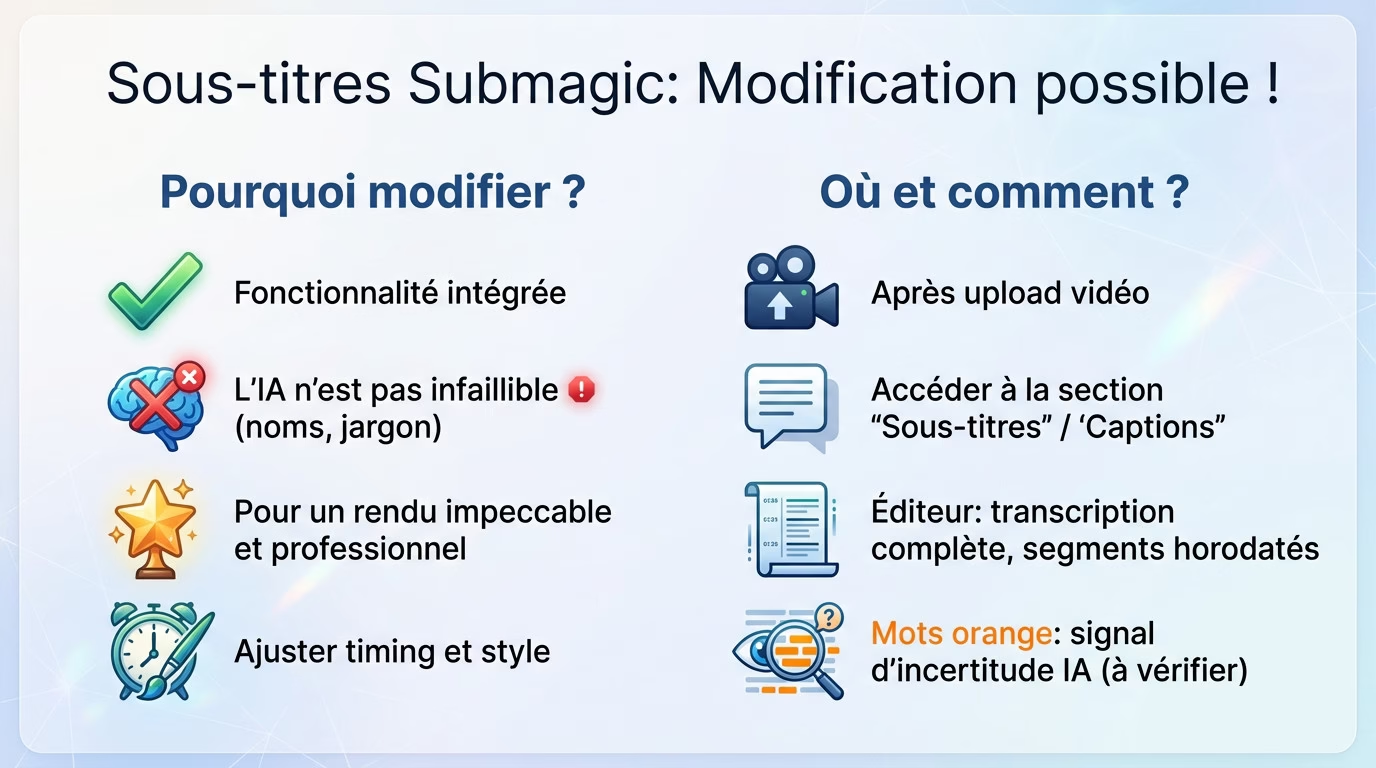
Once your video is uploaded, the tool generates the text and directs you to the main interface. Simply look for the “Subtitles” (or “Captions”) tab located in the editing menu on the left. This is where you can modify everything.
The interface is presented as a complete transcript, broken down line by line with precise timecodes. Each segment of text you see here corresponds exactly to what will be displayed on your video screen.
Keep an eye out: words the AI is unsure about are often highlighted in orange to alert you. This precision is one of the strengths highlighted in our full review of Submagic for optimizing your workflow.
Correcting subtitles: a step-by-step guide
Now that you know where to find the editor, let’s see how to use it in practice. It’s quick and easy.
From typo to correction: the process
To correct a word, simply click on it in the transcript. A text box will open for you to edit it.
The changes are reflected in real time in the video preview. This allows you to see the result immediately.
- Upload your video into Submagic and let the AI do all the initial transcription work.
- Next, go to the “Subtitles” tab to view the entire time-stamped transcript.
- Read the transcript carefully alongside the video to spot even the smallest errors.
- Click directly on the block of text you wish to edit.
- Rewrite the word or phrase directly in the provided editing field.
- Simply confirm the change and move on to the next segment.
Typical mistakes to avoid
Some typos are common, so you need to be vigilant when correcting subtitles on Submagic. It’s a small detail that makes all the difference.
- Proper nouns: brands, names of people or places are often misinterpreted by the tool.
- Technical jargon: terms very specific to your field that AI may not necessarily know.
- Homophones: those words which are pronounced the same but are not spelled the same way (“ses” vs “ces”).
- Punctuation: missing commas or misplaced periods that completely change the rhythm of the sentence.
Going beyond simple text correction
Correcting mistakes is good. But for truly professional subtitles, you also need to master timing and style.
Adjust the timing for perfect synchronization
Synchronization is just as easily adjustable as the text itself. Sometimes, a subtitle appears a fraction of a second too early or too late, disrupting the flow. Submagic lets you fix that in a snap.
The operation is simple and visual. The interface displays the exact timestamps for each segment of your video. You can then manually adjust these values to shift the appearance or disappearance of a block of text and correct Submagic subtitles.
One final piece of practical advice: it is often these micro-adjustments that make all the difference to the reading comfort of your audience.
Customize the style of your subtitles
Beyond textual content and timing, the visual aspect of your subtitles is fully customizable to capture attention.
| Editable style element | Description of the adjustment |
|---|---|
| Police | Change the font to match your visual identity. |
| Size | Enlarge or reduce the text for optimal readability on mobile. |
| Color | Change the text and background/outline color for better contrast. |
| Position | Position the subtitles higher or lower on the screen. |
The ideal workflow: AI followed by human retouching
As you’ve probably gathered, Submagic offers total control. But how do you integrate that into an efficient workflow without spending hours on it?
AI precision: primarily a time saver
Let’s be clear: Submagic’s AI does 99% of the tedious work. Your role is now limited to fine-tuning the details, not rebuilding everything from scratch.
Forget about endless manual transcription. The time saved is enormous: you don’t create the text, you simply proofread it to ensure professional quality.
As I explain in my feedback after one month , this solid base is a major asset, even if some adjustments are still needed.
And what about external SRT files?
Want to import an external SRT file to correct it? Submagic doesn’t work that way. Its strength lies in automatically generating its own subtitles from your video.
The editing process focuses solely on the transcription generated by the tool. External import is not the goal. Instead, it uses its powerful engine as a foundation for efficiently correcting Submagic subtitles.
The key to a perfect result
Here’s my ultimate advice: let the AI handle the heavy lifting. Then, give yourself five minutes to carefully proofread the words highlighted in orange.
This human touch separates amateur video from viral content. It’s a minimal effort for a much higher perceived quality for your audience. Never neglect this step.
Editing your subtitles on Submagic is a breeze. The AI does the work for you, but you retain full control to correct the text or adjust the timing. Take a few minutes to proofread: it’s the key to engaging and professional videos. Now it’s your turn!







Leave a Reply