

One of the first essential steps in using your GoPro is the insertion of the SD card, which enables you to store all your adventure videos and photos. Whether you’re a beginner or an experienced user, understanding how to insert an SD card correctly is essential to ensure optimum performance. This may seem a daunting task for beginners, but with this comprehensive guide, you’ll be able to do it quickly and easily. Follow the detailed steps below to correctly insert the SD card into your GoPro and make sure everything works as planned, so you can capture your best moments without a care in the world.

1. Choose the right SD card
To ensure optimum performance from your GoProit’s crucial to choose a good-quality SD card. The SD card is responsible for storing all your photos and videos, so it’s essential to choose a reliable, high-performance card. Here are the minimum requirements for an SD card:
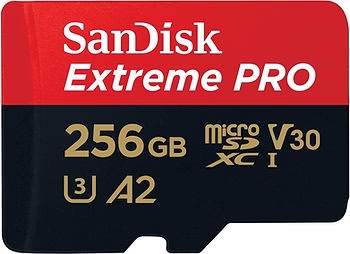
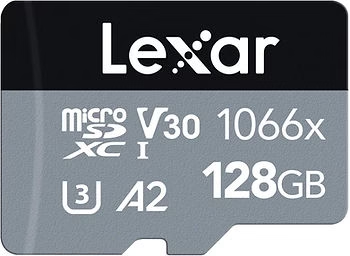
- Card type: microSD, microSDHC, or microSDXC. These card types are the only ones compatible with GoPro.
- Speed class: A2 V30, UHS-3 or higher. An SD card with a lower speed class may cause slowdowns or recording errors, especially when capturing high-definition video.
Optez pour une carte de marque reconnue, car les performances peuvent varier significativement d’une marque à une autre. Les marques telles que SanDisk, Lexar, et Samsung sont fortement recommandées pour leur fiabilité. Vous pouvez consulter la liste des cartes recommandées sur notre article sur les meilleures cartes SD pour GoPro. Une carte SD de qualité garantit que vous pourrez enregistrer vos vidéos sans interruption, même en utilisant les résolutions et les fréquences d’images les plus élevées disponibles sur votre GoPro.
2. Preparing the GoPro
Before you begin, make sure that your GoPro is switched off and that your hands are clean and dry, to avoid damaging the card or the camera. Cleanliness is essential, as particles of dust or dirt can get into the SD card compartment and impair its operation. Here’s what you need:
- Your GoProis switched off and ready to use.
- A compatible microSD card that meets the above criteria.
Also make sure you have a clear, clean area to work in, to minimize the risk of dropping or losing the SD card during operation.
#amazon-widget { border: 1px solid #ddd; padding: 15px; max-width: 350px; margin: auto; text-align: center; background-color: #f9f9f9; box-shadow: 0 4px 8px rgba(0, 0, 0, 0.1); border-radius: 10px; transition: transform 0.3s; }#amazon-widget:hover { transform: scale(1.05); }#amazon-widget img { width: 100%; height: auto; border-radius: 10px; }#amazon-widget h3 { margin-top: 15px; font-size: 1.4em; color: #333; }#amazon-widget p { font-size: 1em; color: #777; margin: 10px 0; }#amazon-widget a.button { display: inline-block; margin-top: 15px; padding: 12px 25px; background-color: #ffa41c; color: #fff; text-decoration: none; border-radius: 5px; font-weight: bold; transition: background-color 0.3s; }#amazon-widget a.button:hover { background-color: #ff8c00; }@media (max-width: 600px) { #amazon-widget { max-width: 100%; padding: 10px; }#amazon-widget h3 { font-size: 1.2em; }#amazon-widget a.button { padding: 10px 20px; font-size: 0.9em; }}#amazon-logo { display: flex; justify-content: center; align-items: center; margin: 10px auto; padding: 5px; box-sizing: border-box; }
Incroyable offre sur la GoPro – Ne ratez pas cette occasion !
Découvrez la caméra d’action GoPro et capturez vos aventures comme jamais auparavant. Soyez prêt à immortaliser chaque moment avec une qualité exceptionnelle !
GoPro en promo : Saisissez-la maintenant !
3. Open the GoPro
To insert the SD card, first open the side door of the GoPro. This door is usually located on the side of the camera, near the battery, and is designed to ensure a watertight seal. Here’s how :
- Locate the latch on the side door of your GoPro. The latch is often small and may require some force to manipulate.
- Unlock the latch by pulling it slightly outwards. The latch may be a little difficult to open, especially for the first few uses, to ensure a perfect seal and protection against water and dust.
- Open the door carefully to gain access to the battery and SD card compartments. Do not force the door, as this could damage the hinges or gasket.
4. Insert SD card
Once the door is open, follow the steps below to insert the SD card securely and correctly:
- Locate the SD card slot next to the battery compartment. This slot is clearly identified by a small slot designed to accommodate the SD card.
- Position the SD card correctly: The card label should face the rear of the device, i.e. towards the battery compartment. This ensures that the card’s connectors are correctly aligned with those on the device.
- Gently insert the SD card until you hear a slight click. This indicates that the card is firmly in place. Make sure the card is properly inserted and does not pop out of the compartment, as an incorrectly inserted card may not be detected by the device.
To remove the SD card, press gently with your fingernail. The card will automatically pop out thanks to the built-in spring mechanism. Take care when removing the card to avoid dropping it.

5. Close the GoPro
Once the SD card has been inserted, you can close the door of your GoPro securely:
- Close the door, making sure that the seal is free of dust and debris. This is important to ensure that the unit remains waterproof, especially if you plan to shoot underwater or in dusty environments.
- Lock the latch until you hear a click. This ensures that the door is properly closed and sealed. Be sure to check that the door is properly locked, as a poorly closed door could allow water or dust to enter the unit, causing irreversible damage.
6. Test SD card
Once the SD card has been installed and the GoPro has been turned back on, it’s important to check that the card is recognized by the camera. You can do this by switching on the GoPro and accessing the control panel. A small icon should appear on the screen, indicating the available space on the SD card. If the card is not recognized, follow these tips:
- Check that the card is correctly inserted. Sometimes, a slight adjustment is required for the card to be detected.
- Try another compatible card. The card you are using may be defective or not adapted to the requirements of the GoPro.
- Reformat the card from a computer, then reinsert it.
7. Reformatting the SD card
To extend the life of your SD card and ensure optimum performance, we recommend that you reformat it regularly. Reformatting prevents potential performance problems and ensures that the card remains in good condition. Here’s how to do it:
- Scan the GoPro screen downwards to access the control panel. This action opens your device’s quick settings options.
- Press “Preferences”, then select “Reset”. These options are usually found in the advanced settings menu.
- Press “Format SD card”. Note that this action will delete all the contents of the card, so be sure to back up your important files first. Regular formatting helps to eliminate corrupted files and ensure smooth operation when recording.
Conclusion
Correct installation of the SD card in your GoPro is an essential step to start capturing your greatest adventures. With the card in place, you’re ready to record spectacular videos and immortalize precious moments, whether it’s during your mountain escapades, scuba dives, or simple family moments. Always make sure you follow the card maintenance recommendations, such as regular reformatting, and take full advantage of everything your GoPro has to offer!
Don’t forget that the quality of your SD card has a direct impact on the quality of your recordings. Using a good-quality, well-maintained and properly inserted SD card will enable you to capture your adventures without any interruptions or unpleasant surprises. With careful preparation, your GoPro will become the ideal tool for immortalizing your exploits, whatever the challenges you face. Make the most of every moment and capture it in the best possible quality with your GoPro and a perfectly installed SD card.




Leave a Reply