
You just received your Insta360 Snap and you’re wondering how to use it correctly?
Good news: this is precisely one of the major strengths of the Insta360 Snap . It is designed to be simple, fast and hassle-free.
But (and this is normal), there are still 2-3 settings to know, especially on iPhone, for everything to work perfectly.
In this guide, I’m going to explain it to you step by step:
- How to connect your Insta360 Snap
- how to use it on iPhone and Android
- small but important adjustments
- and mistakes to avoid
Take it to the next level with Insta360 Snap
Finally, use your phone’s rear camera for sharper, better framed, and more professional-looking selfies and vlogs. Insta360 Snap allows you to see yourself in real time and create more easily, without complicated setup.
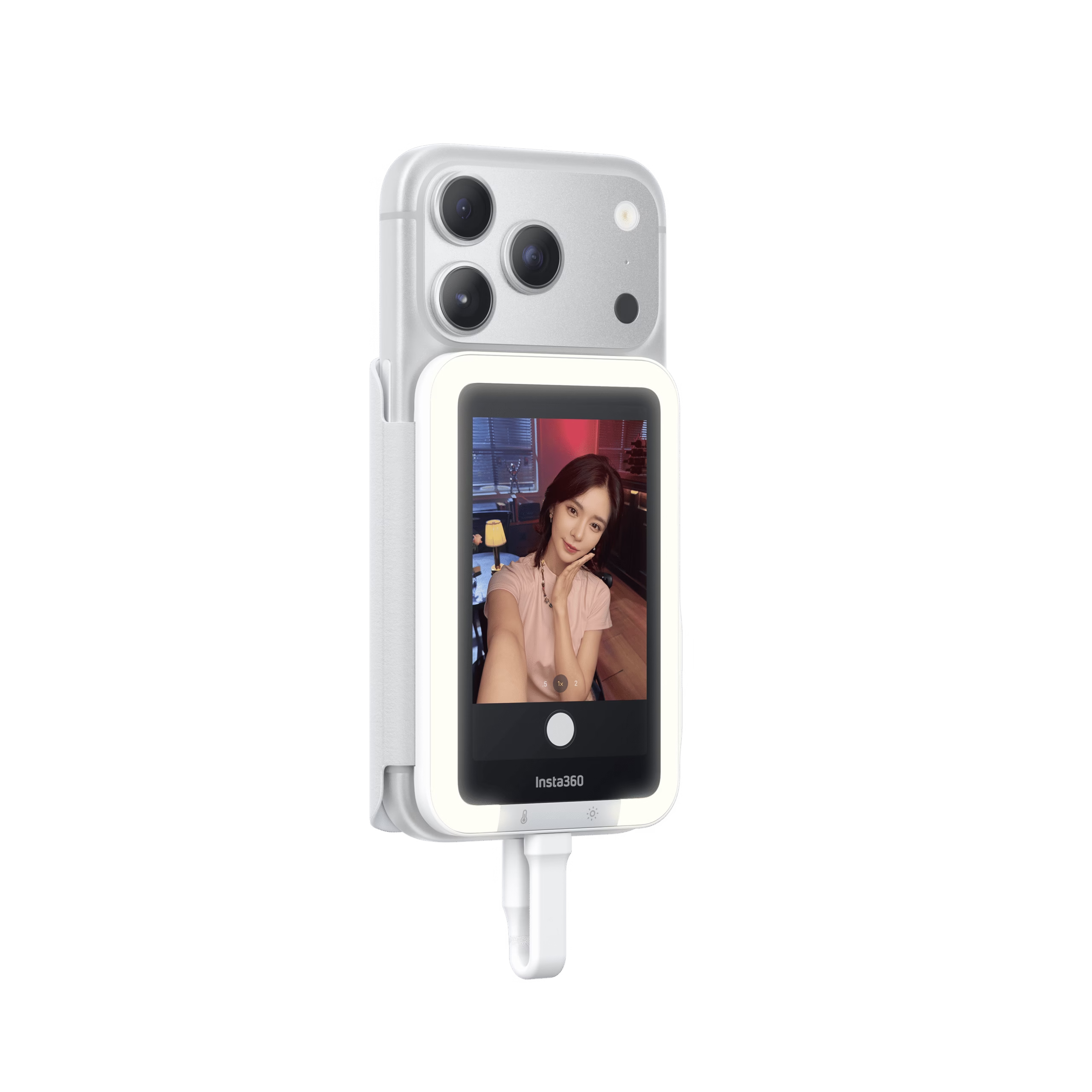
How to connect Insta360 Snap to your smartphone
The first thing to understand with Insta360 Snap is that everything is designed to go fast.
No app, no complicated setup.
Simple steps:
- Attach the Insta360 Snap to the back of your phone (magnetic).
- Plug it in via USB-C
- Open the camera app on your smartphone
And that’s all.
👉 The screen automatically turns on and displays what your rear camera sees.
No Bluetooth.
No Wi-Fi.
No complicated delays.

How to use Insta360 Snap on iPhone (complete steps)
If you’re on an iPhone, there’s a super important setting you need to change.
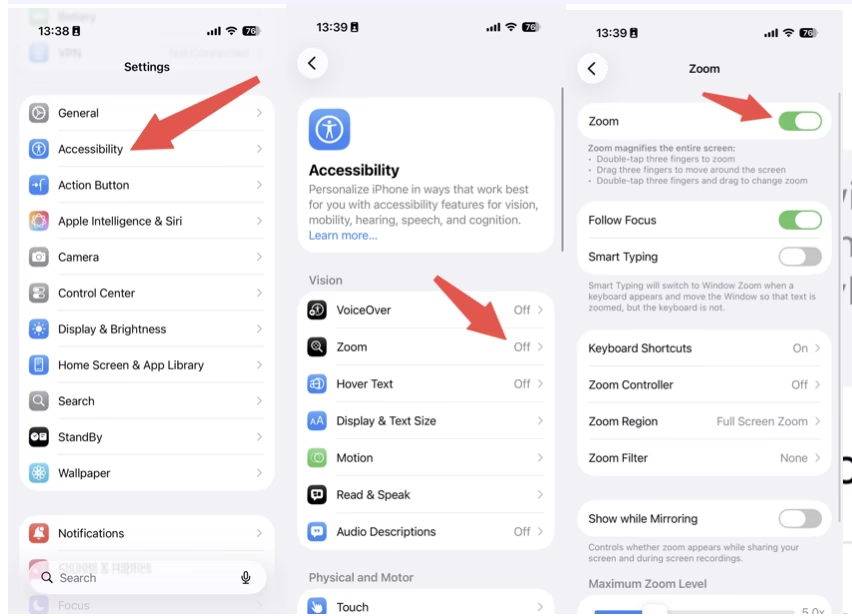
Enable Zoom (required)
For the Insta360 Snap ‘s touchscreen to work correctly, you need to activate an option:
👉 Settings → Accessibility → Zoom → Enable
It’s essential. Without it, the touchscreen won’t work properly.
Correct the zoomed screen
When you activate Zoom, you will most likely have an enlarged screen.
Don’t panic, it’s normal.
👉 Solution: Double-tap the screen with three fingers
It restores the display to normal immediately.
Quick access to the camera
Once Zoom is enabled, you can access the camera directly from the lock screen with Insta360 Snap .
It’s convenient, especially for filming quickly without wasting time.
Available gestures
With the Insta360 Snap , you can use:
- tap (single press)
- swipe
- pinch (zoom with your fingers)
Basically, you use your screen as if it were the phone’s screen.
Switch to the rear camera with Insta360 Snap
Stop sacrificing the quality of your selfies and vlogs. Insta360 Snap allows you to see yourself in real time with your smartphone’s rear camera, for sharper images, better framing and a much more professional look.
- Real-time preview
- Simple and quick wired connection
- Compact and magnetic design
- Version with integrated light available
How to use Insta360 Snap on Android
On Android, it’s even simpler.
Allow screen mirroring
When you plug in the Insta360 Snap , a message appears:
👉 “Allow screen mirroring”
You press “Allow” and that’s it.
Check compatibility
Your smartphone must:
- have a USB-C port
- support DisplayPort mode
This is what allows the display on the Insta360 Snap .
Launch the camera
Then, nothing special:
- open the camera app
- and films normally
The Insta360 Snap works with:
- the native app
- and third-party apps

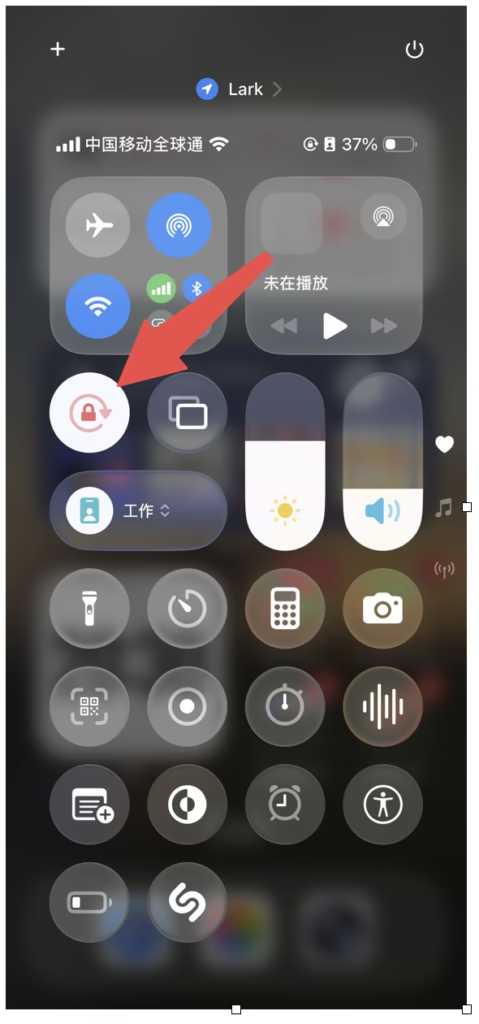
Adjust the screen orientation correctly
A small detail… but super important.
On iPhone
👉 Activates orientation lock
On Android
👉 Activates automatic rotation
Why is this important?
Because it allows:
- to prevent the screen from rotating in all directions
- to have a clean horizontal or vertical framing
How to use Insta360 Snap commands
The Insta360 Snap is simple, but it still has some useful functions.
Mirror button
Pressing the button allows you to:
👉 to invert the image
Important :
- It only changes the appearance
- not the final photo
Display mode
You can :
- switch between full screen
- or optimized preview
👉 by pressing and holding
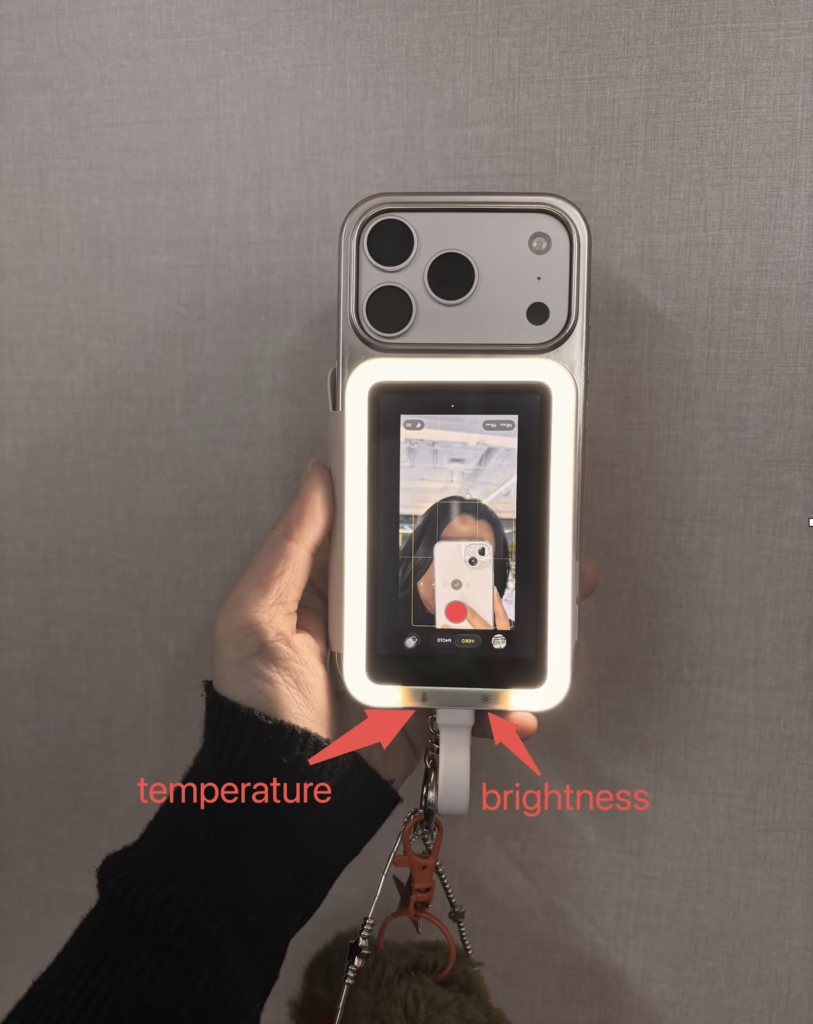
Use the light (if light version)
If you have the version with lighting from the Insta360 Snap :
- single press → turn on
- tap → change brightness
- long press → turn off
You can also adjust the temperature:
- cold
- hot
- neutral
Tips for using Insta360 Snap effectively
After using it, here are a few simple tips that really change the experience with the Insta360 Snap :
- uses the cache to prevent accidental keystrokes
- Always check your framing before starting to record.
- use the self-timer for photos
- Remember to unplug to save battery
Common problems and solutions
This is clearly an important part if you want to rank on Google.
Zoomed screen
👉 Cause: Zoom option enabled
👉 Solution: Double tap with 3 fingers
Inverted image
👉 Cause: Mirror mode
👉 Solution: Press the mirror button
Battery drains quickly
👉 normal
The Insta360 Snap consumes approximately 15 to 20% during prolonged use.
Keyboard not displaying
👉 Solution: Unplug the Insta360 Snap
iPhone Lightning incompatible
👉 The Insta360 Snap does not work with Lightning
👉 nor with adapter
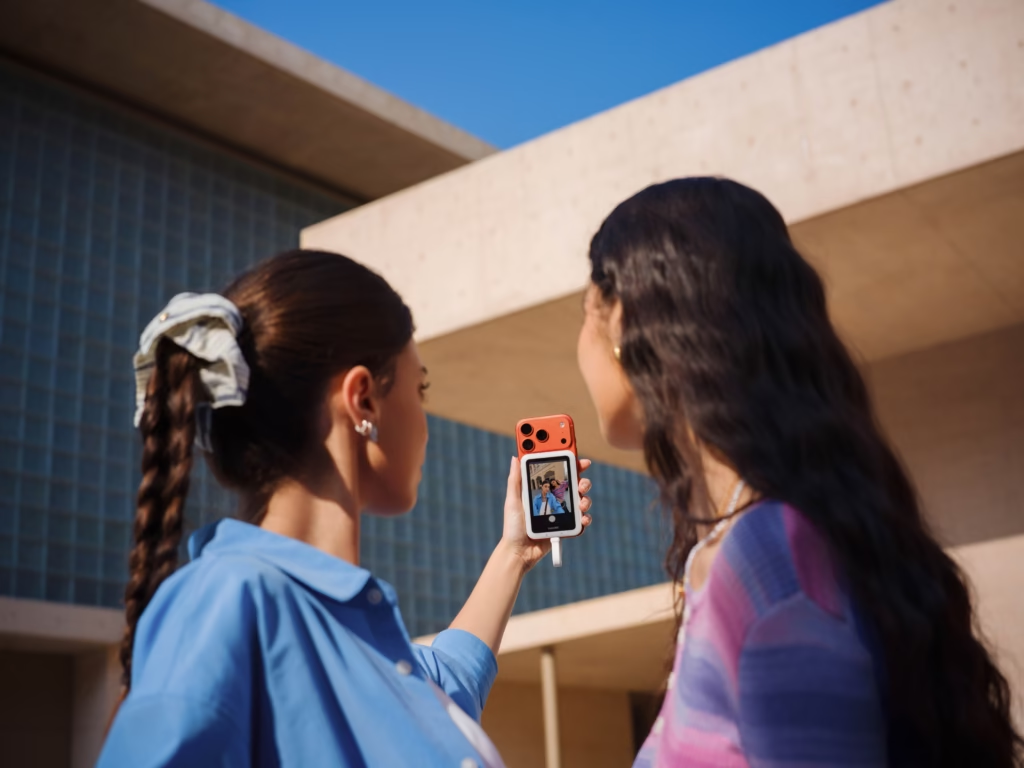
Why Insta360 Snap is so easy to use
What’s really nice about the Insta360 Snap is that it doesn’t change your habits.
You continue to use:
- your phone
- your camera
- your apps
But with much better control.
No need to learn anything new.
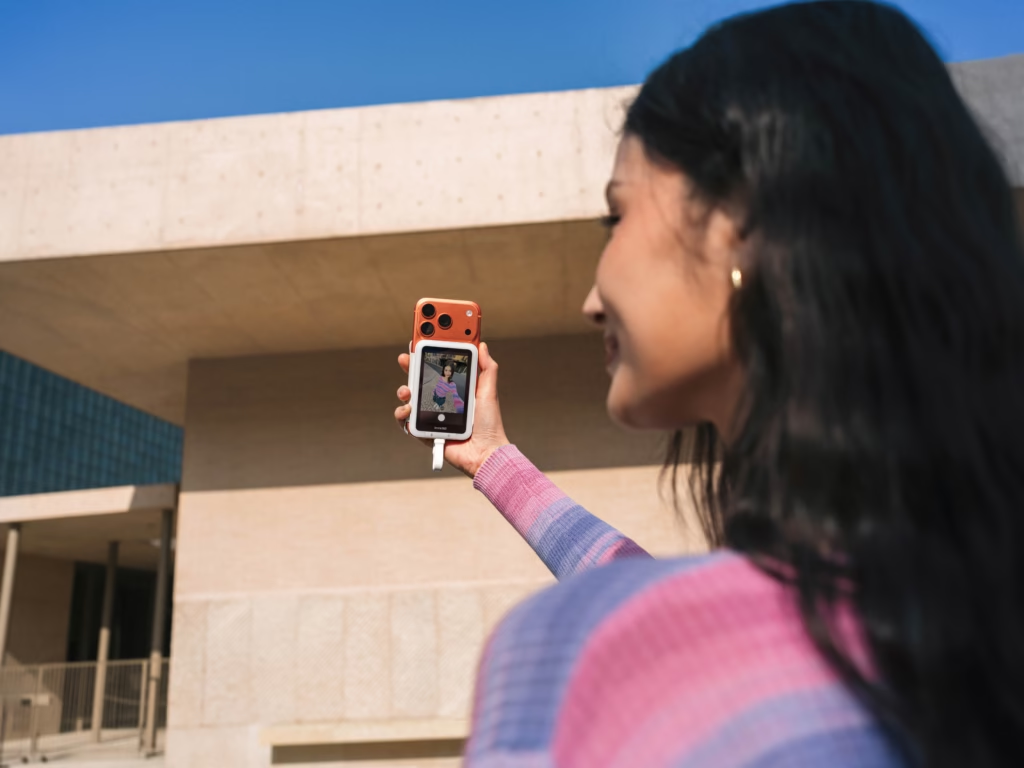
Is Insta360 Snap really easy to use on a daily basis?
Yes, clearly.
Once you have done:
- Zoom setting on iPhone
- or allowed duplication on Android
Everything becomes fluid.
The Insta360 Snap is an accessory that you forget you’re wearing… but that improves everything.
👉 better framing
👉 better quality
👉 Fewer errors
And most importantly:
👉 You save time with every shot
If you regularly film with your smartphone, this is exactly the kind of simple tool that makes a real difference.
👉 Insta360 Snap 🚀





Leave a Reply