
Video editing can often be a long and tedious step in content creation. Between transcribing dialogue, synchronizing audio and video, and adapting formats for different platforms, the process can quickly become overwhelming. Fortunately, with the advent of artificial intelligence tools like Submagic, it’s possible to automate many tasks while maintaining professional quality. In this article, we present a step-by-step tutorial on how to use Submagic, save time, and produce videos worthy of the biggest content creators.
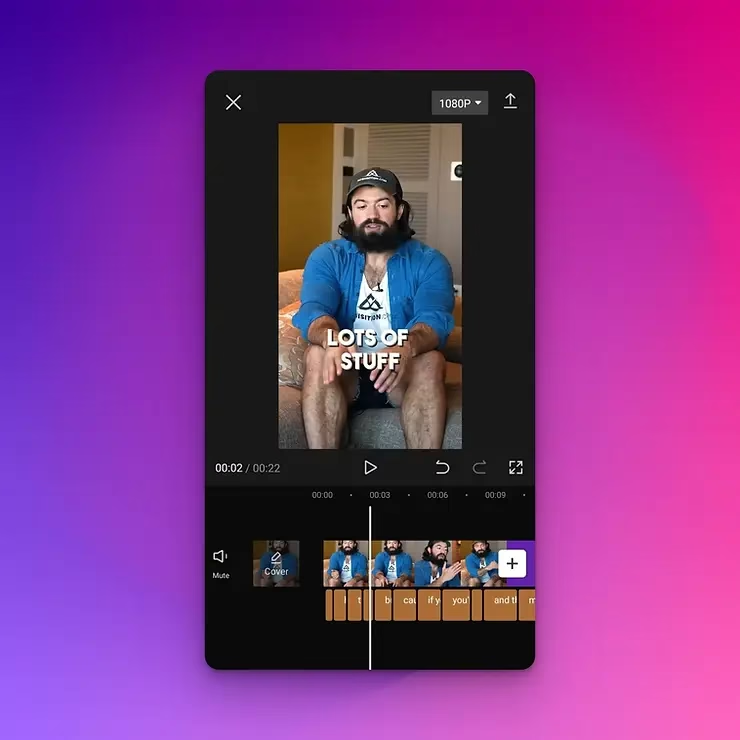
Why Automate Video Editing with Submagic?
Submagic is specifically designed to simplify the technical and repetitive tasks of video editing. With its intuitive interface and powerful features, it revolutionizes creators’ workflows by eliminating tedious steps. Here’s what Submagic can do for you:
- Create accurate subtitles : The tool automatically generates subtitles in multiple languages with impressive accuracy.
- Synchronize audio and video : No more manually adjusting tracks, Submagic takes care of everything.
- Adapt your videos to social media formats : Vertical, square or horizontal, your videos will be ready to be published on YouTube, TikTok, Instagram and more.
With Submagic, you save time and focus on what matters most: your creativity.
Discover how Submagic can revolutionize your workflow here: Submagic .
Step-by-Step Tutorial for Using Submagic
1. Create a Submagic Account
The first step is to sign up for Submagic . Registration is quick and easy. Once logged in, explore your dashboard to discover the different options. If you’re new, take advantage of the free trial period to test all the features without obligation.
2. Import your video
In your dashboard, click “Import Video”. Choose the file you want to edit. Submagic will analyze your video to identify dialogue, audio, and key points, preparing the file for editing.
3. Generate Automatic Subtitles
Activate the automatic subtitling feature. Submagic uses advanced artificial intelligence to accurately transcribe your dialogue. You can customize the style of the subtitles (size, color, font) to match your brand’s aesthetic.
Tip: If you are targeting an international audience, add subtitles in multiple languages to maximize your reach.
4. Adjust the Format of Your Video
Submagic offers convenient options for converting your videos to the format suitable for each platform. Like what:
- Vertical : Perfect for TikTok and Instagram Reels.
- Horizontal : Ideal for YouTube.
- Square : Suitable for Facebook ads or Instagram posts.
These adjustments can be made with a single click, without altering the quality of your content.
5. Apply Automatic Enhancements
Submagic automatically optimizes audio/video synchronization and adjusts visual quality. Colors, clarity, and sound are enhanced to deliver a professional look. This means less effort on your part and content that stands out.
6. Export and Share
Once you’ve finished editing, click “Export” to download your video. Submagic guarantees fast export with optimal quality. You’re now ready to share your creation on your social media or YouTube channel.

Tips for Maximizing Submagic Usage
1. Plan your setups
To save even more time, group several videos to be imported and processed into a single session. This approach is ideal for creators who publish regularly.
2. Customize your subtitles
Don’t hesitate to experiment with style options to ensure your subtitles reflect your visual identity. Well-designed subtitles can strengthen your branding.
3. Test the different formats
A video can be adapted for multiple platforms thanks to cropping and formatting options. This maximizes the use of every piece of content you create.
4. Take advantage of advanced features
Explore all of Submagic’s options, such as adding multilingual subtitles, to reach a global audience. Automation doesn’t mean you lose control; quite the opposite.
Conclusion
Automating video editing with Submagic is an essential solution for all content creators, from beginners to experts. This tool helps you save valuable time while producing videos that captivate your audience. Stop wasting hours managing technical details; let Submagic handle it for you.








Leave a Reply